
Explore Data Metrics Along with Benefits of DynamoDB


 6 min read
Scalable is one of the major characteristics expected of any database by growing businesses. Amazon DynamoDB is a NoSQL database that supports key-value and document data models and scales to support petabytes of data and tens of millions of read and write requests per second.
In this blog post, let’s build a new dashboard with sample data from an Amazon DynamoDB database and learn how to inspire insights into your business using Bold BI® with a CData Connect Cloud connector connected through a MySQL endpoint.
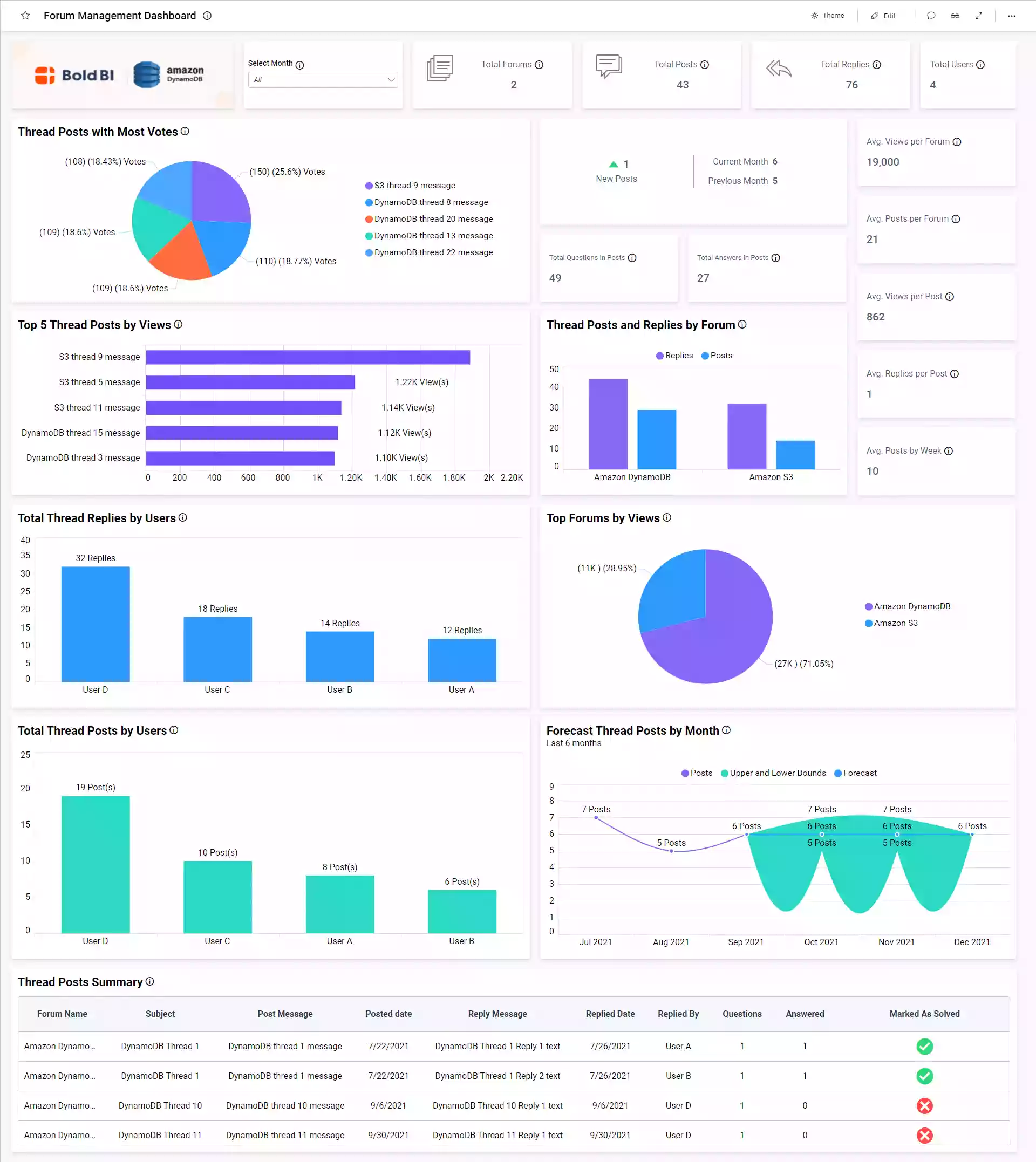
This forum management dashboard focuses on tracking customer service team performance through the following metrics:
- Total forums
- Total posts
- Total replies
- Total users
- Avg. views per forum
- Avg. posts per forum
- Avg. views per post
- Avg. replies per post
- Avg. posts by week
- Total questions in posts
- Total answers in posts
- Total posts and replies
- Thread posts with most votes
- Top 5 thread posts by views
- Thread posts and replies by forum
- Total thread replies by users
- Top forums by views
- Total thread posts by users
- Forecast thread posts by month
- Thread posts details
To learn more about the metrics and KPIs used in this dashboard example, refer to the Forum Management Dashboard demo.
Deploying data in Amazon DynamoDB
If you are aware of this process already, you can skip this and move to the next section, Connecting Amazon DynamoDB data with Bold BI.
Steps:
- Creating a table in DynamoDB.
- Loading data in the table.
- Creating a virtual database for Amazon DynamoDB.
Creating a table in DynamoDB
To create an Amazon DynamoDB table from the AWS Management Console, log into your existing Amazon Web Services (AWS) account or create a new account in the AWS portal.
Open the DynamoDB console page. Choose Table on left side of the console page and the choose Create Table. Provide a table name and set the field name as partition key. Check the sort key and provide a field name if you want to sort your data based on columns. Then click Create to create a table.
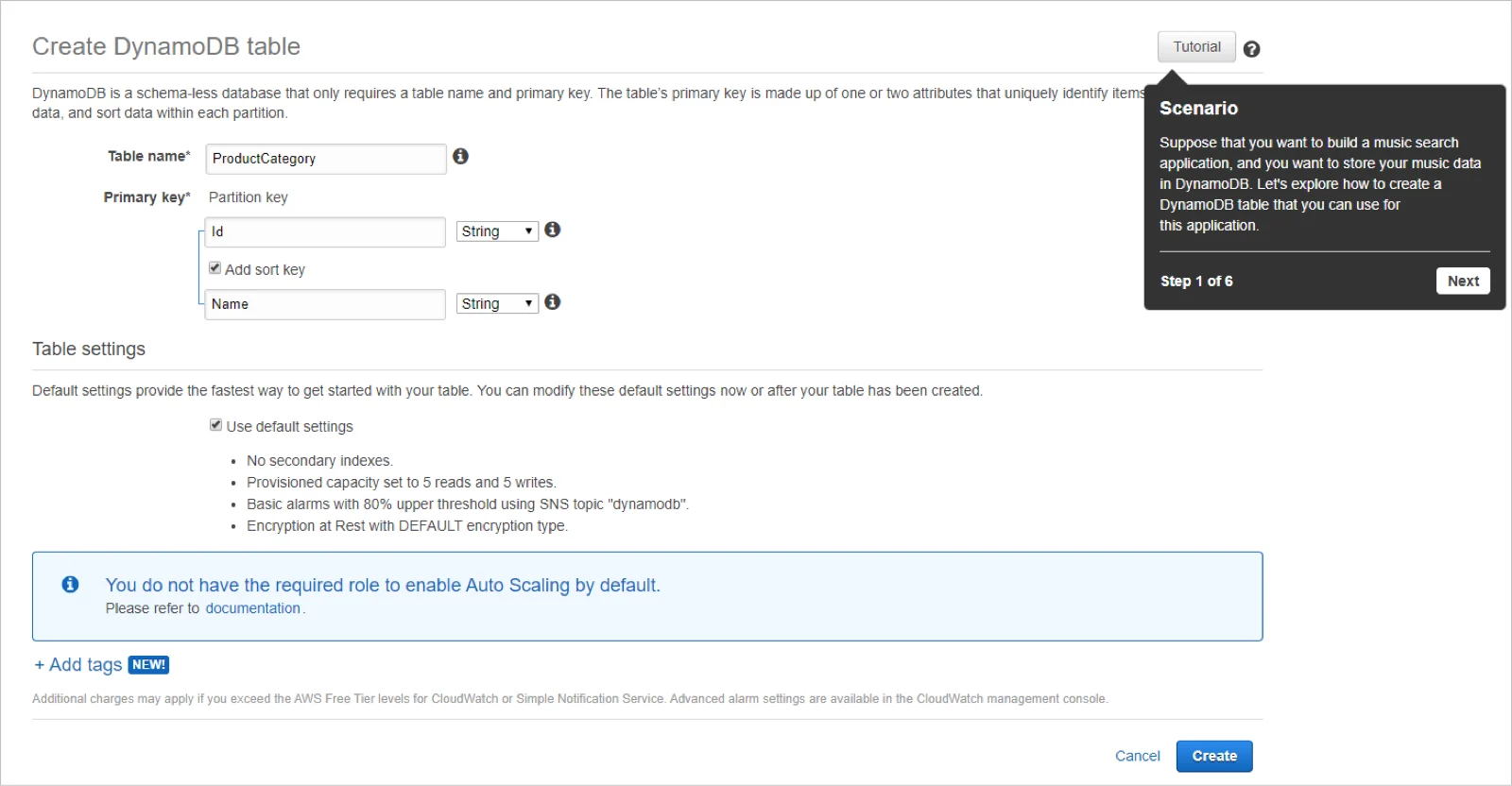
Once you’ve created your table, load your data in it.
Loading data in the table
Open the Amazon DynamoDB console. The created table will be listed under Tables, as shown following.
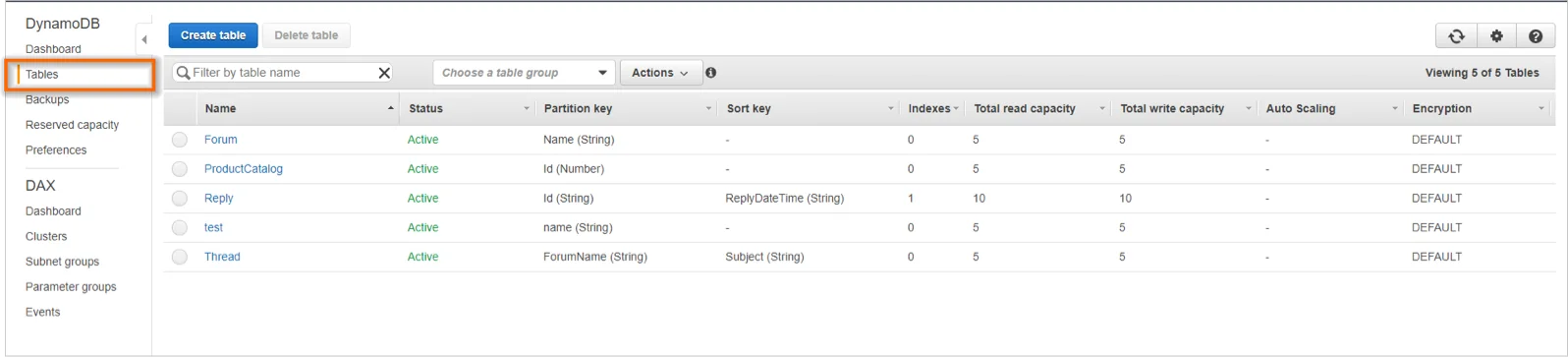
In the tables list, choose the desired table into which you want to insert data. Click the Items tab and choose Create item.
Choose the ‘+’ icon and click Append.
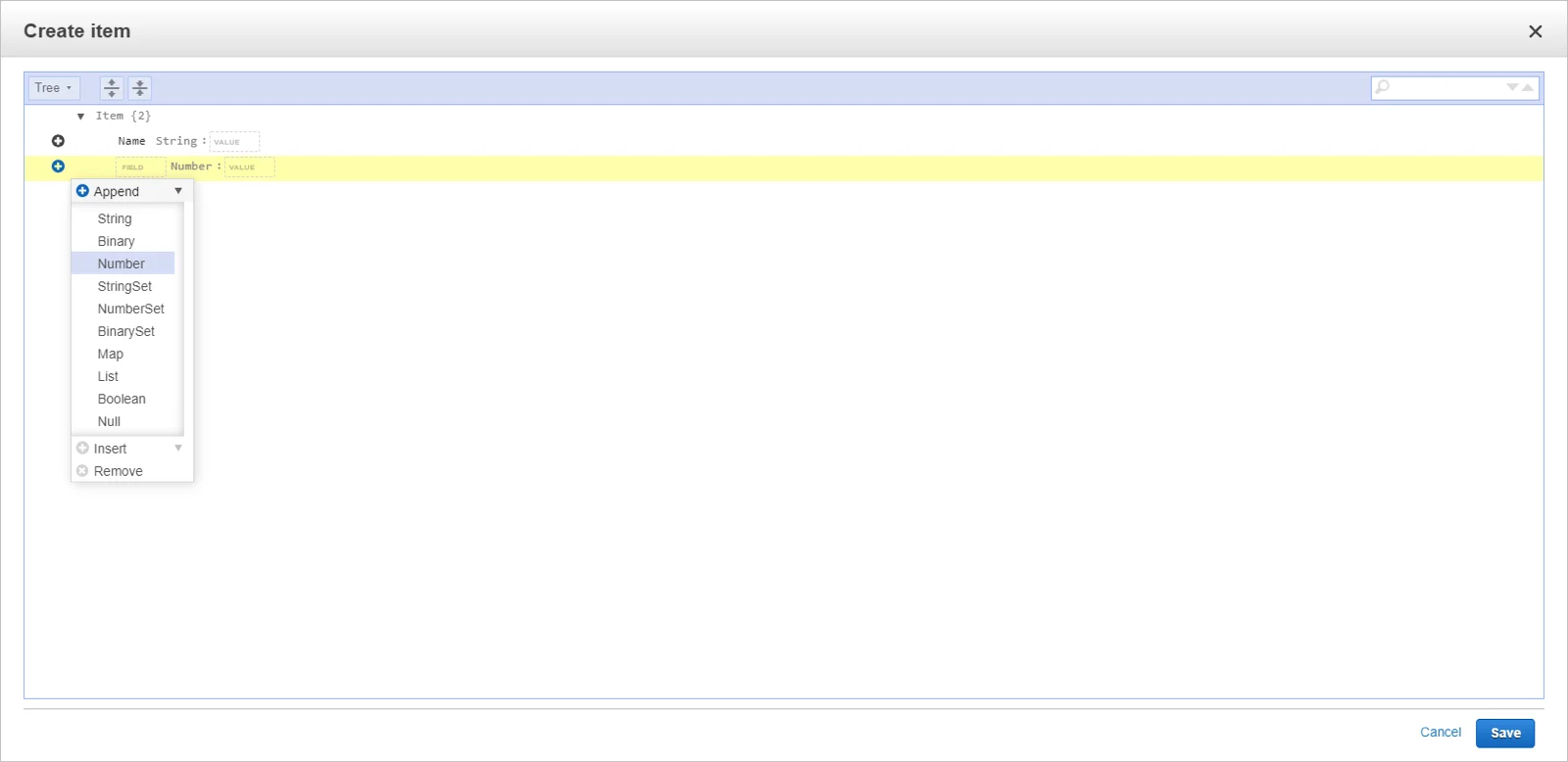
Choose the data type of your field, enter the name of field and value, then Save the items.
Repeat this process and create multiple items in your table. You can view your table data under the Items tab.
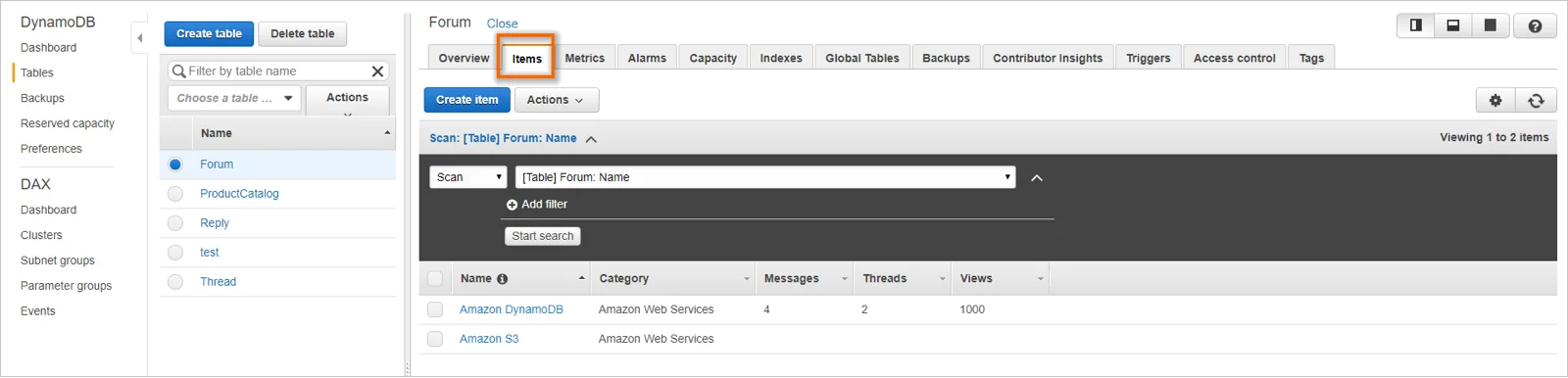
To edit an item in the table, choose its field and update the value of the item.
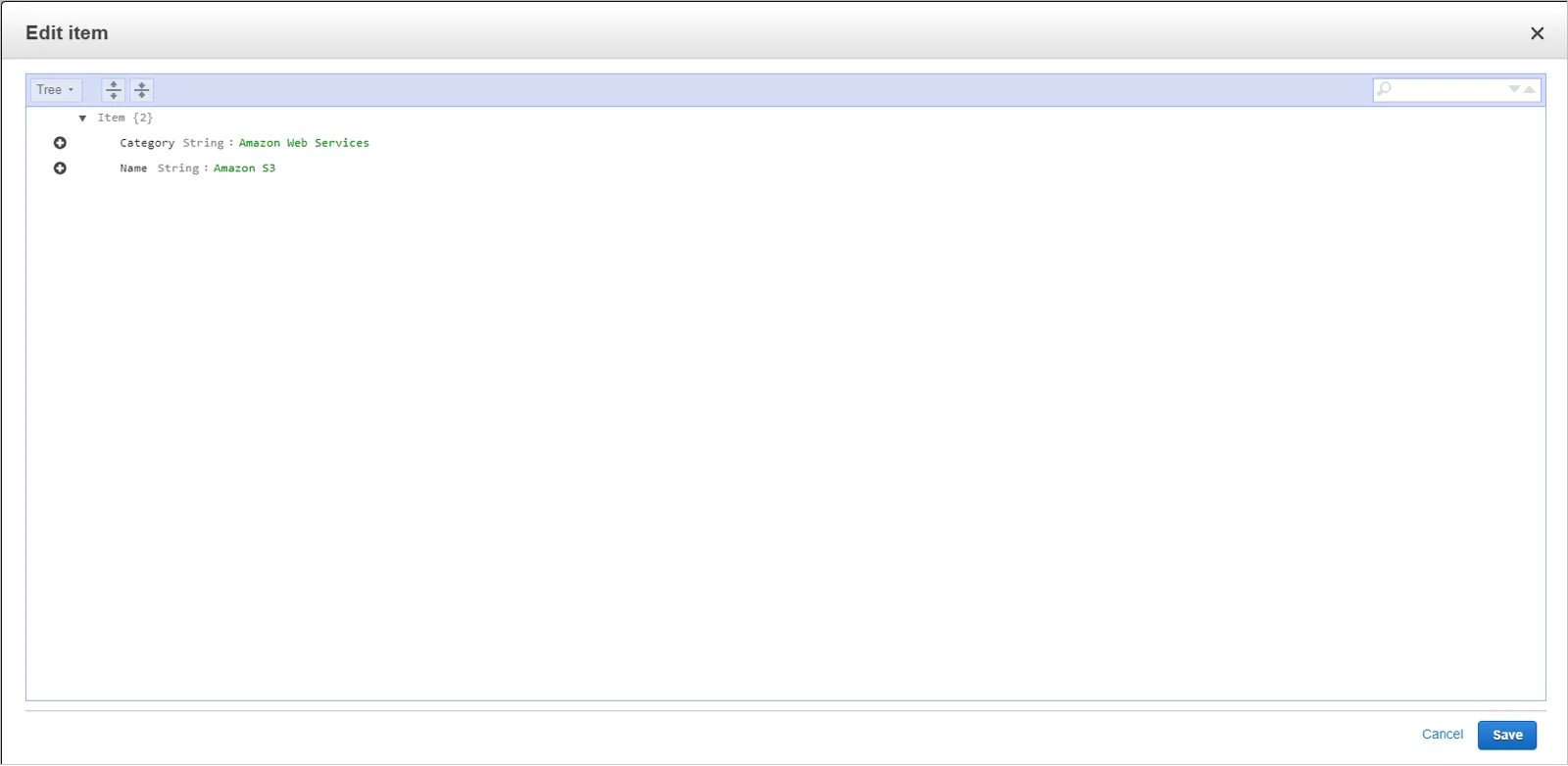
You can download the JSON files with sample data for each table from Amazon. Use the AWS command line interface (AWS CLI) to load the data into DynamoDB or enter the data manually into the Amazon DynamoDB console.
Refer to the getting started guide of Amazon DynamoDB for more details on how to create a table and load data.
You can create an Amazon DynamoDB data source with Bold BI through the CData Connect Cloud.
Let’s see how to connect the Amazon DynamoDB table through the CData Connect Cloud. You will need to create an AWS Access Key and AWS Access Secret before connecting to DynamoDB data. This lets you create a virtual database for all supported connectors and make it available as a standard SQL interface. Refer to this blog post for more details about CData Connect Cloud connector integration with Bold BI.
Creating a virtual database for Amazon DynamoDB
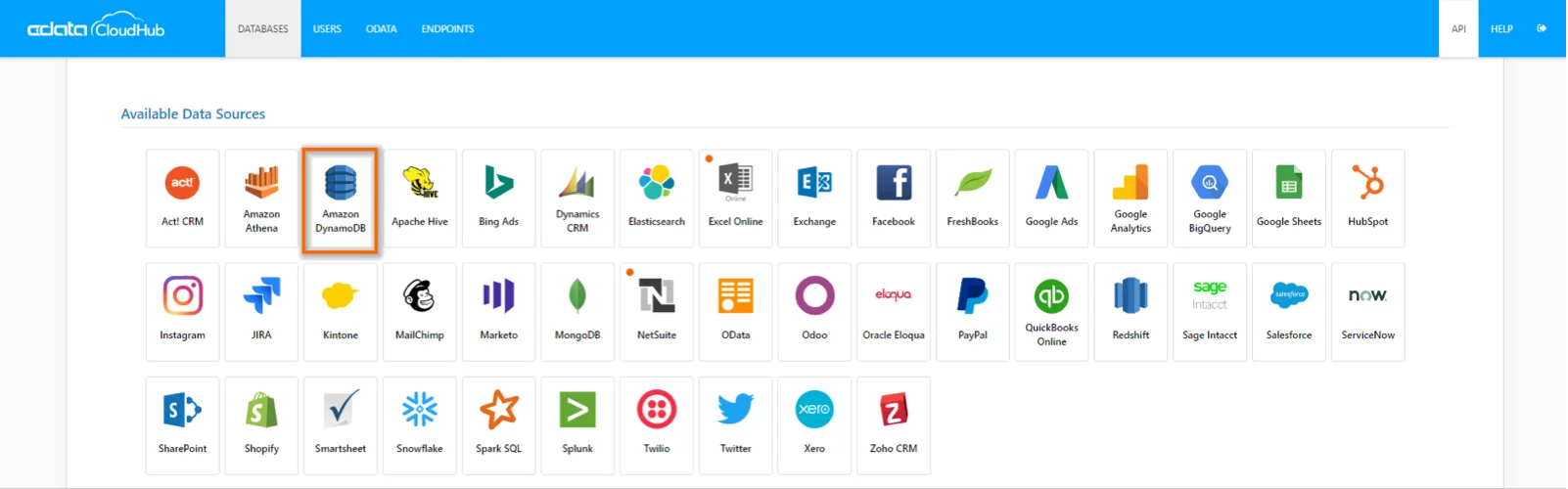
In your CData Connect Cloud, click the Amazon DynamoDB data source.
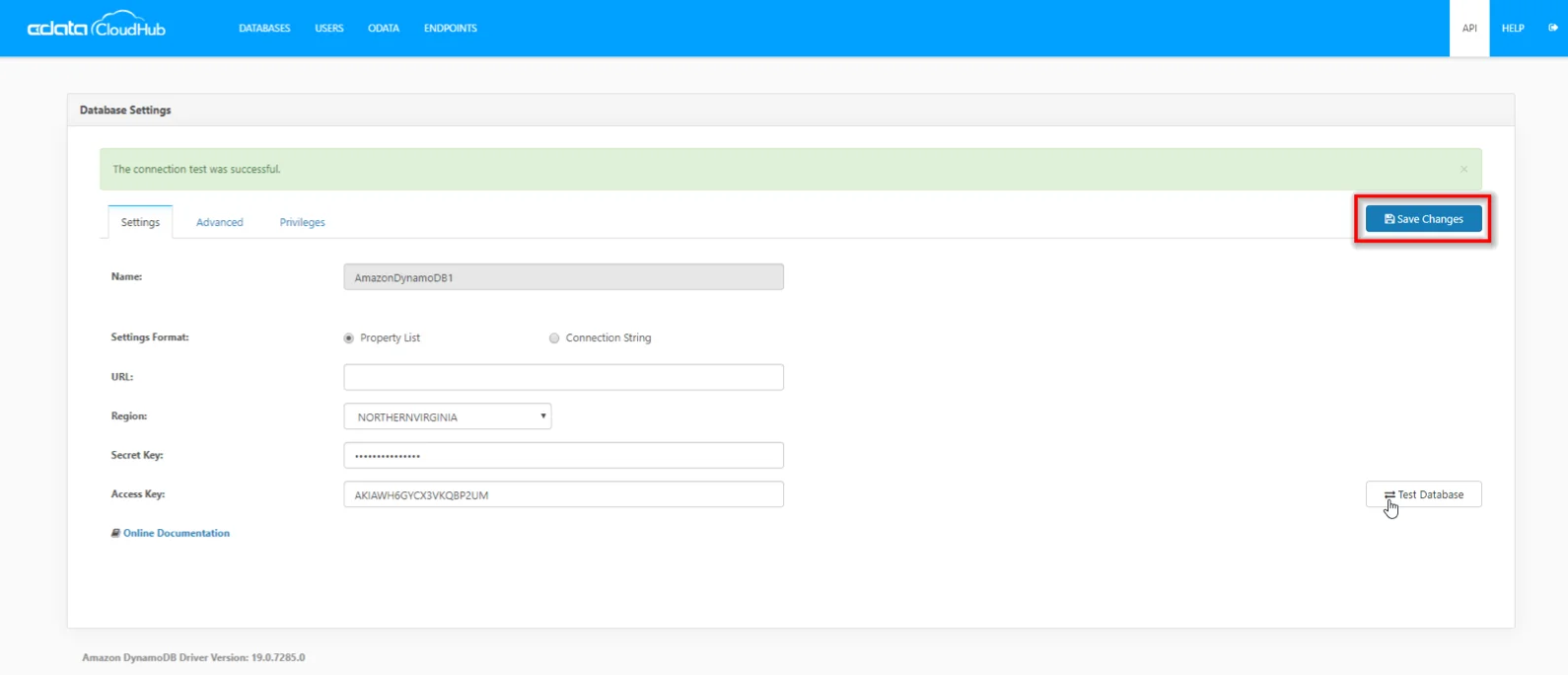
In the Settings tab, provide your AWS account Access Key and Secret Key. Choose the Region in which you are creating the table. Click Test Database.
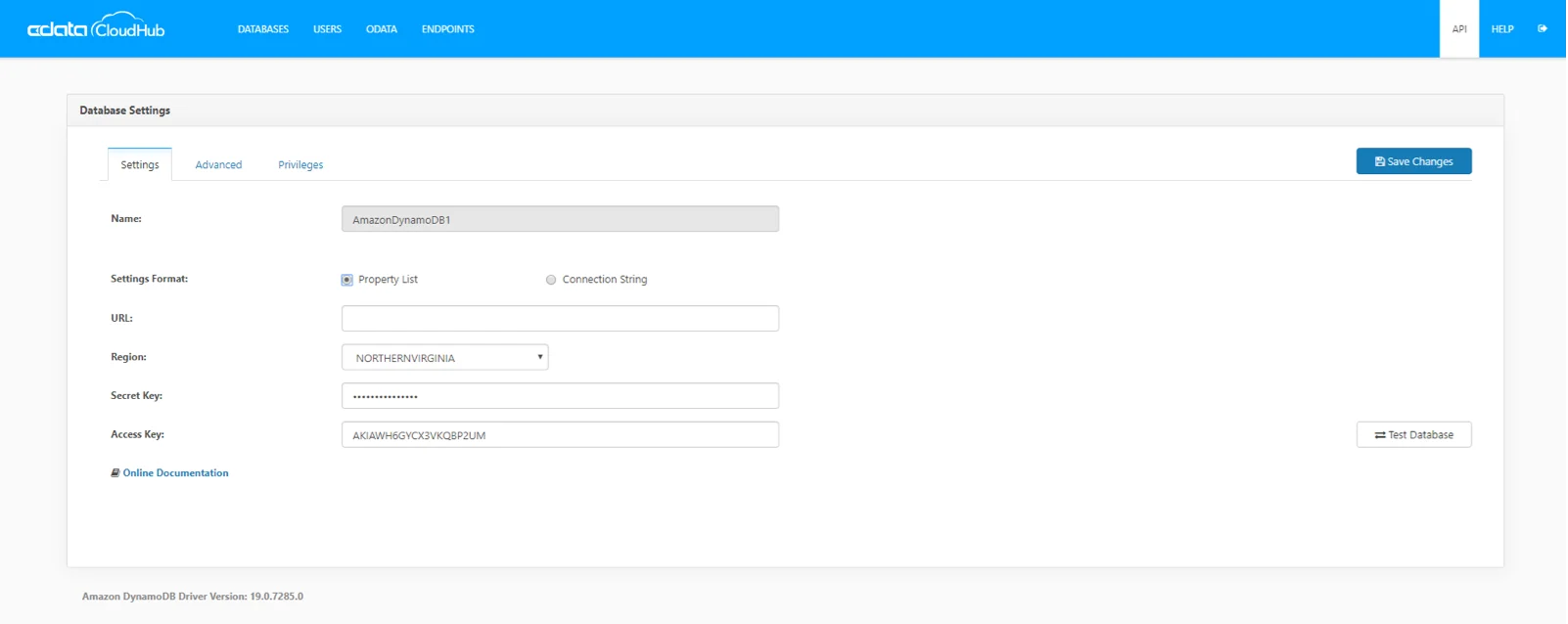
You should receive a ‘Success!’ message in Connect Cloud. Once you receive this, click Save Changes to save the created database to maintain connectivity.
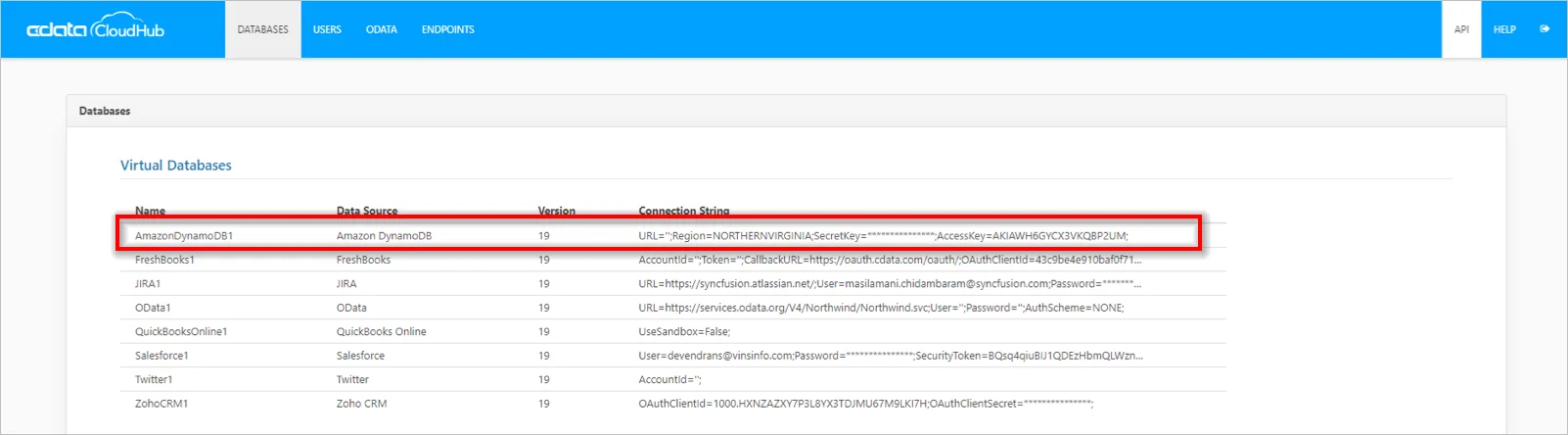
The created database will be listed under DATABASES like in the following.
Once you’ve saved the Amazon DynamoDB virtual database, you are ready to connect to Bold BI with the MySQL endpoint.
Creating Amazon DynamoDB data source
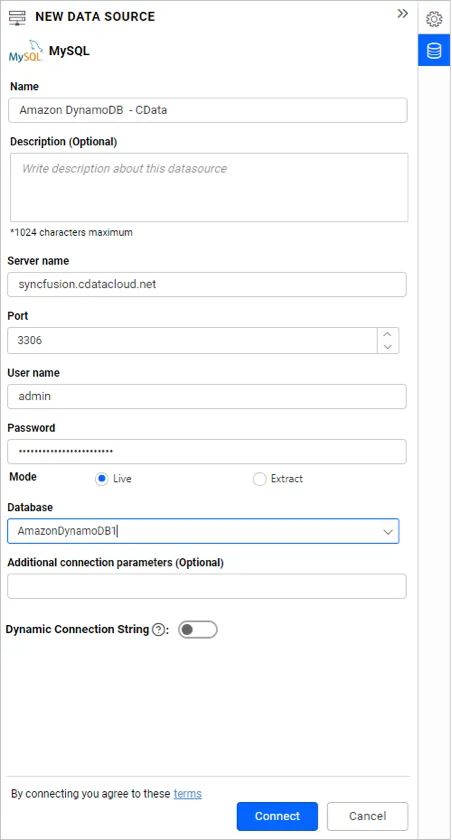
To create an Amazon DynamoDB data source through MySQL, select MySQL from the data source list and fill in the required details. Click Connect.
Drag and drop the table and save the data source.
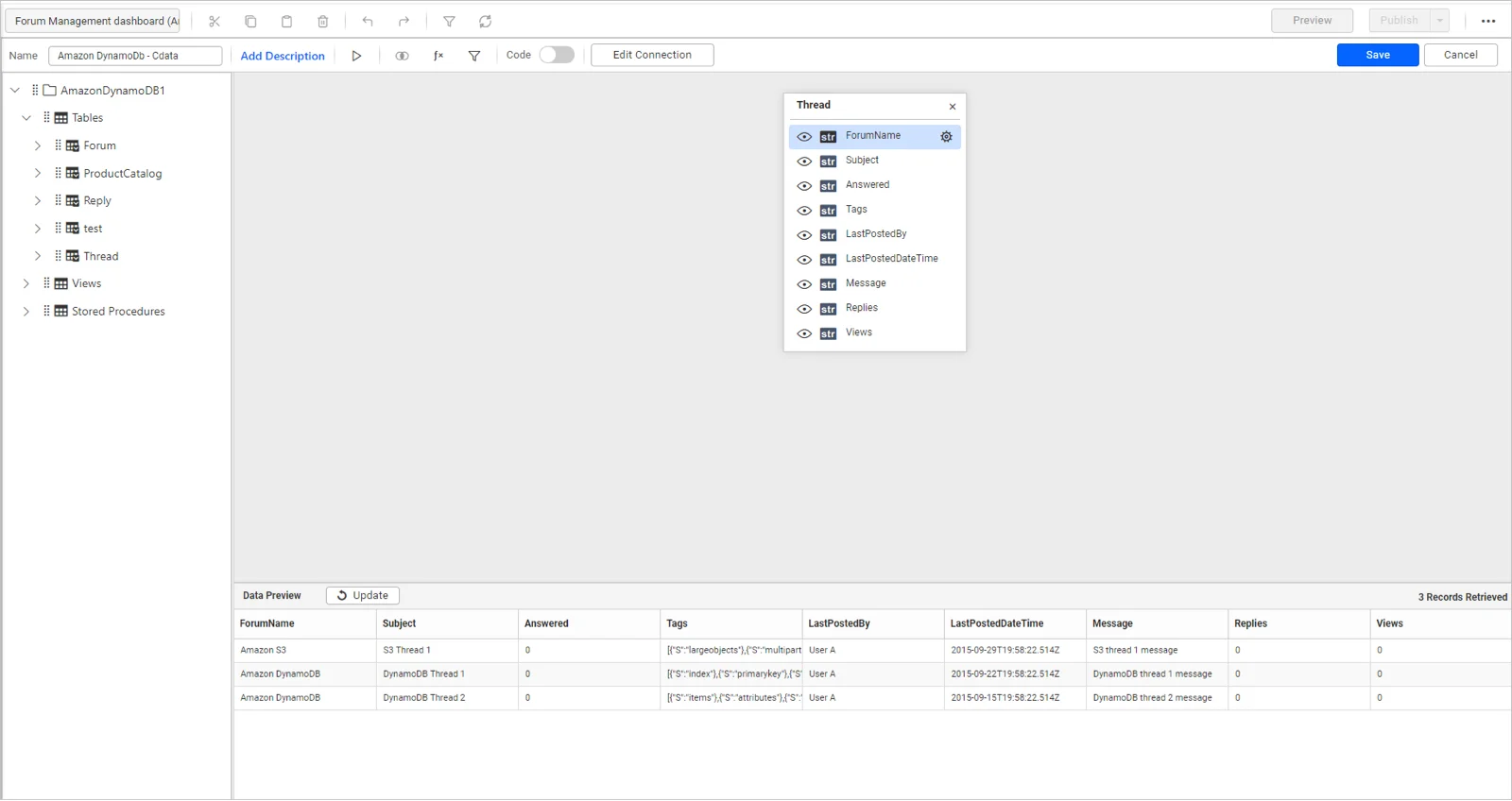
The created data source will be added to the DATA SOURCES panel. Once the data source is created, add the required widgets to your dashboard and connect data to them to visualize the metrics.
Conclusion
We hope this blog article guides you in deploying data in Amazon DynamoDB tables in AWS. You now also know how to visualize data through a forum management dashboard using Bold BI® with a CData Connect Cloud connector. If you have any questions on this blog, please feel free to post them in the following comment section. Get started with Bold BI by signing up for a free trial and create more interactive business intelligence dashboards. You can also contact us by submitting your questions through the Bold BI website or, if you already have an account, you can log in to submit your support question.