
Mastering Data Source Management in Embedded Applications

Data serves as the backbone of contemporary applications, including embedded systems. Effectively handling data sources is crucial for the success of any embedded application. In this blog post, we will discuss the significance of data source management in the embedded domain. We will explore fundamental principles, dive into sophisticated methods, and offer practical guidance to enable you to create, modify, and visualize data sources with Bold BI® within your embedded applications.
Importance of data source management in embedded systems
Managing data sources is critical for the efficient operation of embedded applications. Here are some primary reasons why managing data sources is essential in the context of embedded systems:
Simplified deployment
Embedding data sources allows for easier deployment of applications by including all necessary data within the application itself, eliminating separate configurations.
Improved performance
Embedded data sources enable applications to access data more efficiently, reducing network delays and enhancing responsiveness.
Enhanced security
By embedding data sources, security measures are heightened as the exposure of sensitive data is minimized, and tighter control over data access is established.
Customization and adaptation
Embedded data sources offer the flexibility to customize and tailor data structures, formats, and content to suit the application’s specific requirements.
Simplified maintenance
Embedding data sources simplifies maintenance by integrating updates directly within the application, streamlining data management.
Improved user experience
Embedded data sources provide a smoother user experience with faster data retrieval, real-time updates, and a responsive application interface.
How to embed a data source for Bold BI in your application
Follow these steps to embed data sources for Bold BI in your JavaScript application:
- Download the Bold BI embedding sample.
- On your .html page, include the Embedded SDK URL within the head tag.
<head>
    <script type="text/javascript"src="https://cdn.boldbi.com/embedded-sdk/v6.9.10/boldbi-embed.js"></script>
</head>

Embed SDK URL - Within the body tag, generate a div element with a custom ID name for data source embedding purposes.
<body>
    <div id="datasource_container"></div>
</body>

div Element with a Custom ID - Within the body tag, include a Bold BI instance creation function with the custom ID name. Use the onload attribute to call this function, as well as the loadDatasource() function.
- Get the data source ID from the URL to embed it. The data source can be embedded by using either the identification number that is associated with the data source, or by using the name that has been assigned to the data source, which can be retrieved as shown in this documentation.
- Embedding data source with ID:
function renderDatasource() {
    var dashboard = BoldBI.create({
        serverUrl: rootUrl + "/" + siteIdentifier,
        datasourceId: "6173f922-6ffc-432b-a2ce-72ab3c677d9e",
        embedContainerId: "datasource_container",
        embedType: BoldBI.EmbedType.Component,
        environment: environment == "enterprise" ? BoldBI.Environment.Enterprise : BoldBI.Environment.Cloud,
        width: "100%",
        height: "100%",
        mode: BoldBI.Mode.DataSource,
        expirationTime: 100800,
        authorizationServer: {
            url: authorizationServerUrl
        },
    });
    dashboard.loadDatasource();
}
Data Source Embedded with ID - Embedding data source with name:
function renderDatasource() {
    var dashboard = BoldBI.create({
        serverUrl: rootUrl + "/" + siteIdentifier,
        datasourceNane: "TestDataSource",
        embedContainerId: "datasource_container",
        embedType: BoldBI.EmbedType.Component,
        environment: environment == "enterprise" ? BoldBI.Environment.Enterprise : BoldBI.Environment.Cloud,
        width: "100%",
        height: "100%",
        mode: BoldBI.Mode.DataSource,
        expirationTime: 100000,
        authorizationServer: {
            url: authorizationServerUrl
        },
    });
    dashboard.loadDatasource();
}
Data Source Embedded with Name
- Embedding data source with ID:
- Implement an authorization endpoint in your application by using the authorization server as a bridge between the application and the Bold BI server. You will need to provide user details.
- Now run the sample to embed the data source. The embedded data source will be rendered as shown in the following figure:

Embedded Data Source
Creating a data source for Bold BI in embed mode
- If you need to create a new data source in embed mode, use the Connection mode as shown in the following code sample and call the loadDatasource() function. You must have permission to create data sources to be able to do this.
function renderDatasource() {
  this.dashboard = BoldBI.create({
  serverUrl: this._appComponent.baseUrl,
  embedContainerId: "dashboard",
  width: "100%",
  height: "100%",
  mode: BoldBI.Mode.Connection,
  authorizationServer: {
            url: this._appComponent.apiHost + this._appComponent.authorizationUrl
  },
});
this.dashboard.loadDatasource();
};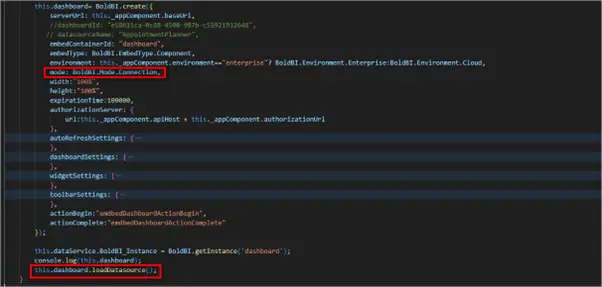
Create Data Source in Embed Mode - Run the sample. The data source connection list will be rendered as shown in the following figure:
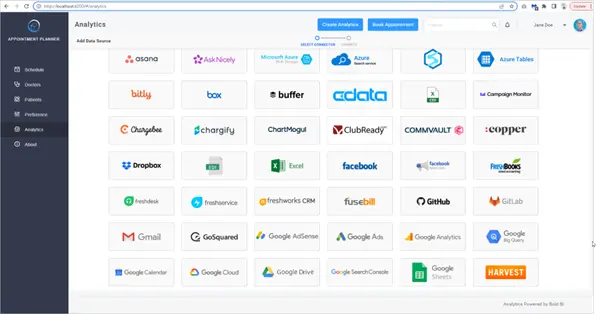
Data Source Connection List - Choose a connection type based on your needs. In this example, we are selecting the SQL connection type.
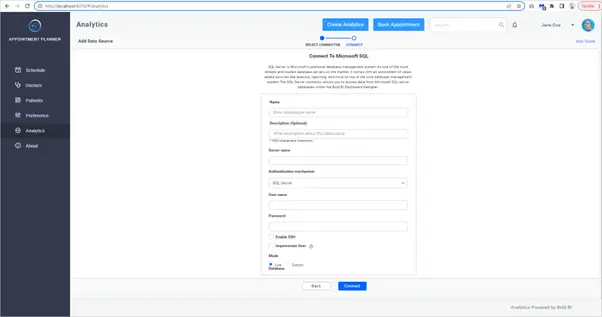
Data Source Connection - Provide the data source name and server name. Connect your database and then drag and drop your table. Save the data source with a valid name to ensure proper identification for future reference.
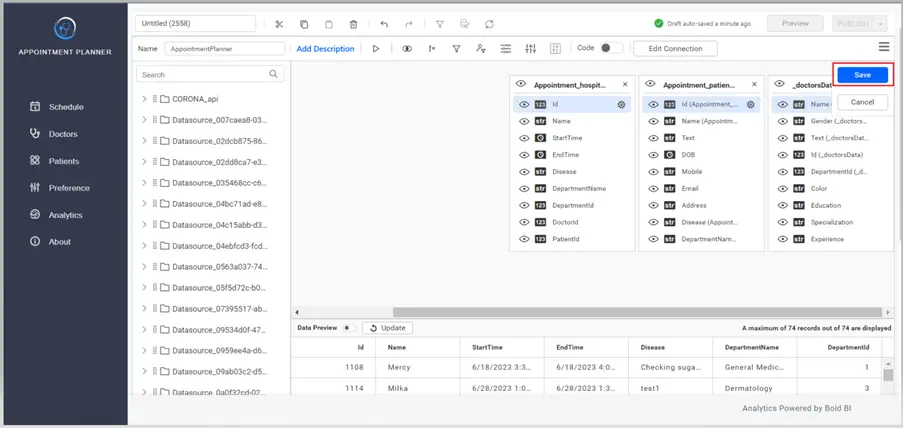
Save Data Source
Editing a data source for Bold BI in embed mode
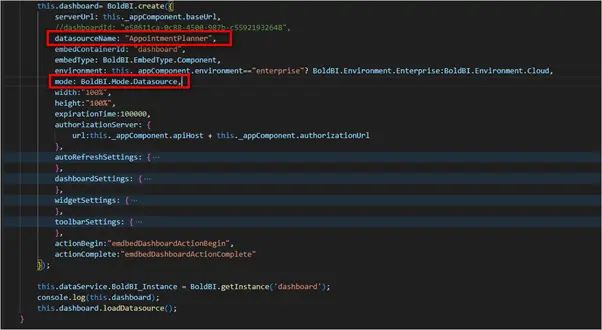
- If you want to edit a created data source, provide the name of the data source you want to edit, use the Datasource mode, and call the loadDatasource() function as shown in the following code sample:
function renderDatasource() {
  this.dashboard = BoldBI.create({
  serverUrl: this._appComponent.baseUrl,
  datasourceName: "AppointmentPlanner",
  embedContainerId: "dashboard",
  width: "100%",
  height: "100%",
  mode: BoldBI.Mode.Datasource,
  authorizationServer: {
            url: this._appComponent.apiHost + this._appComponent.authorizationUrl
  },
});
this.dashboard.loadDatasource();
};
Editing Data Source - Run the sample. The selected data source will be opened in the embedded data source designer page where we can edit it. After editing the data source, click Save.
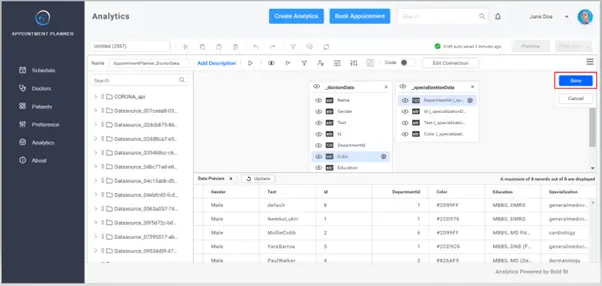
Editing and Saving the Data Source - Check out this documentation for more details about embedding a data source and creating data sources in embed mode.
Viewing connected data sources in embed mode
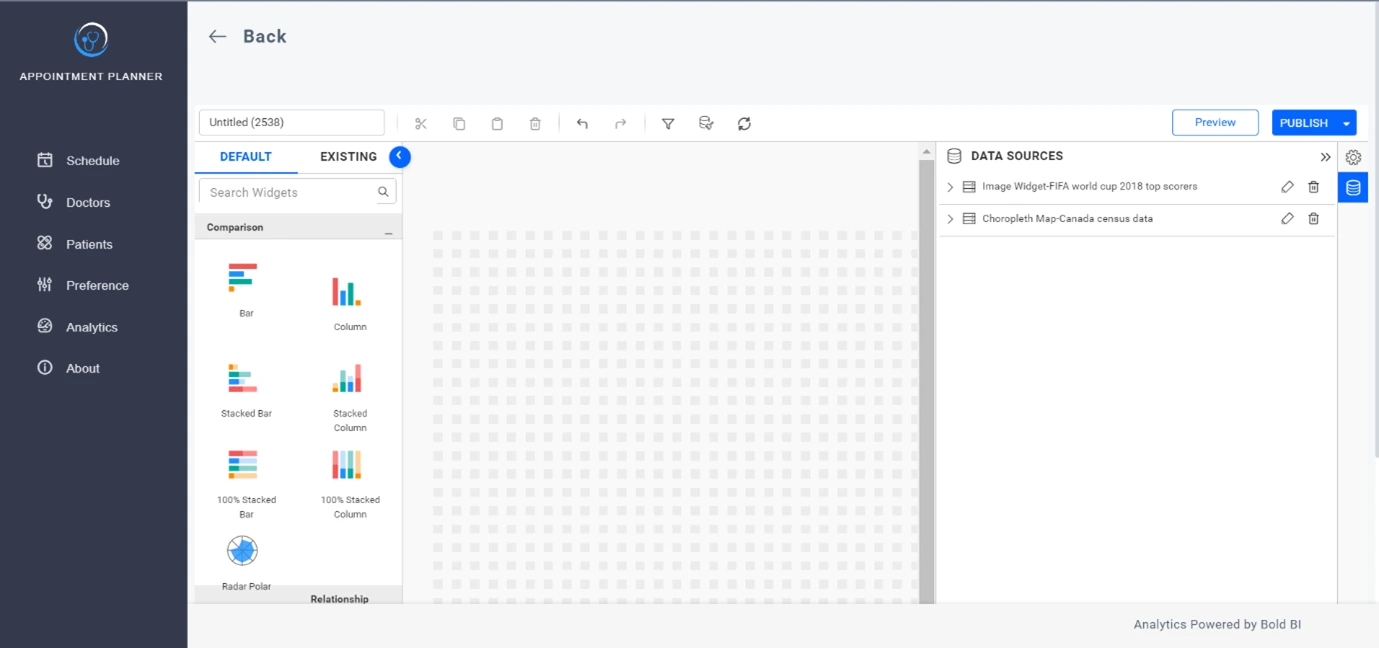
You can view the connected data source for a specific dashboard by embedding the dashboard designer in your application. Open the connected data source from the data source list in the dashboard designer as shown in the following figure:
You can also embed a data source for Bold BI to other web applications through single sign-on authentication as explained in this documentation.
Conclusion
I hope you now understand how creating, viewing, and editing data sources in embedded applications allows businesses to tailor their data, ensure data integrity and security, and optimize application performance. These benefits come together to enhance user experiences and drive better decision-making.
If you have any questions or need assistance, don’t hesitate to reach out through the Bold BI website; simply log in to submit your inquiries if you already have an account. If you’re not yet a customer, get started with Bold BI now by signing up for a free trial!