
Monitoring Azure DevOps Project Performance

Azure DevOps is a SaaS offering from Microsoft. It provides developer services for teams to plan work, collaborate better, and deliver faster. Azure DevOps is being considered an enhanced replacement for Visual Studio Team Services (VSTS). It allows you to quickly create work items, track work with configurable kanban boards, and set up automated pipelines to build, test, and deploy your code to any platform. With Bold BI®, visualize the board items of your team project easily and assess performance.
In this blog post, let’s see how to connect SmartHotel360 project work items through an Azure DevOps connection and build a new dashboard on project performance using Bold BI.
What is SmartHotel360?
SmartHotel360 is a fictitious smart hospitality company epitomizing the future of connected travel. The work items, code, and pipeline definitions for the public web site of SmartHotel360, an E2E reference sample app with several consumer and line-of-business apps and an Azure back end are organized as a project template in the Azure DevOps Demo Generator, which is now open source.
Now, let’s see how to provision the SmartHotel360 template-based project inside your Azure DevOps organization using the Azure DevOps Demo Generator service.
Provisioning SmartHotel360 template-based project
To create the demo project, navigate to the Azure DevOps Demo Generator homepage. Once signed in, the Create New Project page opens as shown in the following image.
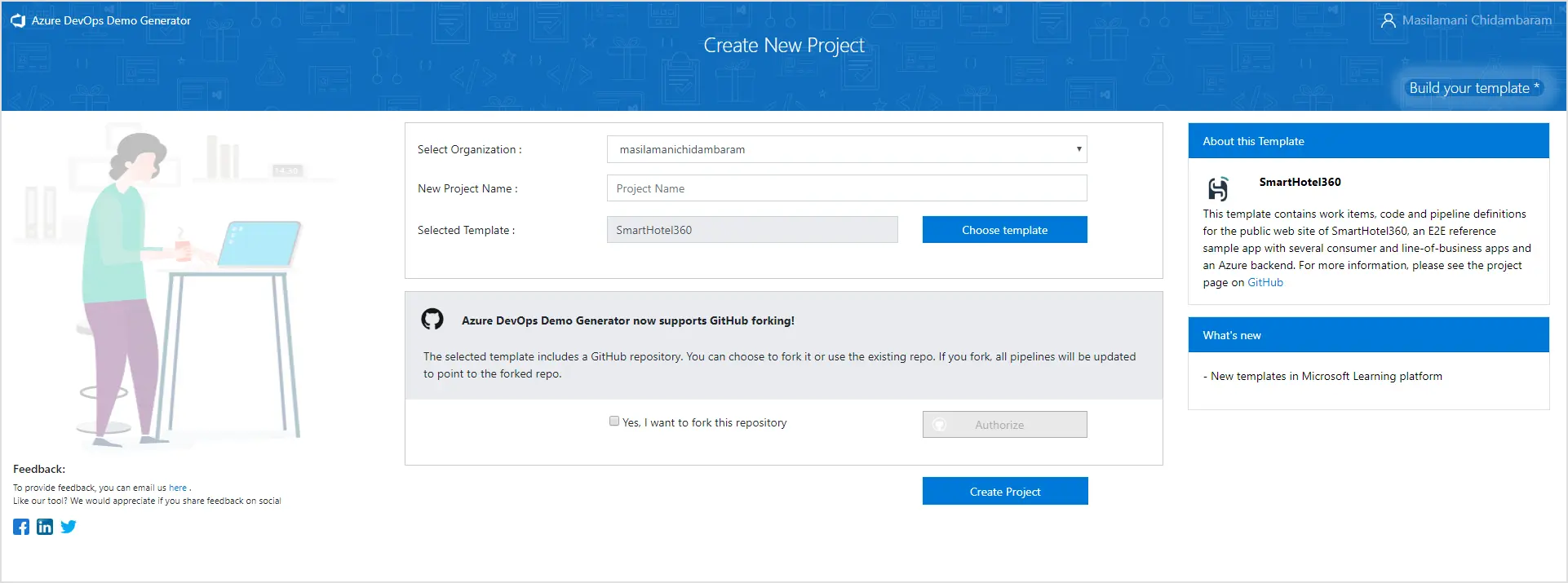
Choose which Azure DevOps organization should have the demo project created and specify a name for the project, say Azure DevOps_SmartHotel360_Demo.
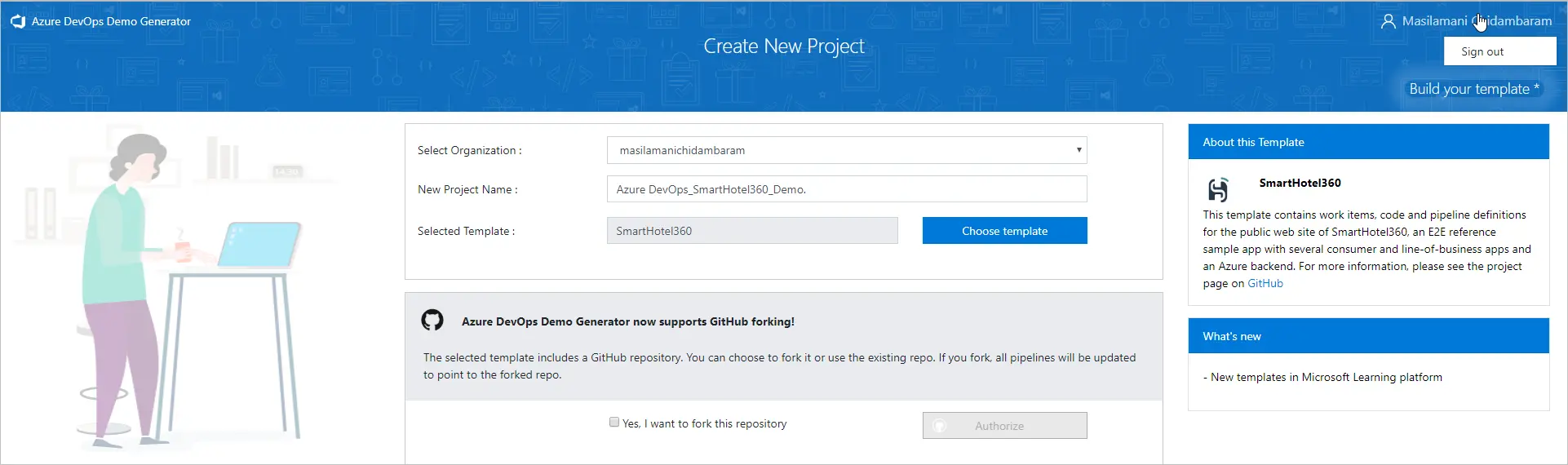
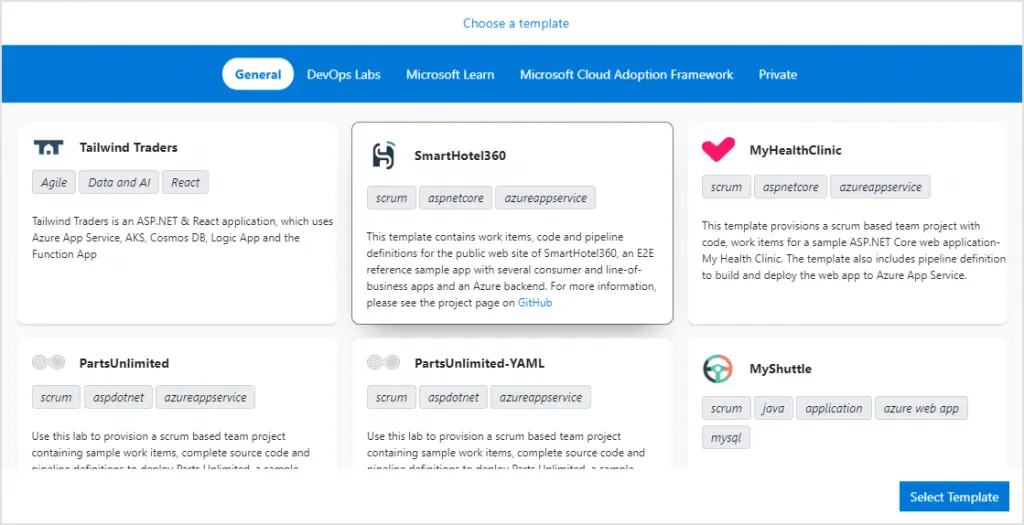
Select Choose template. The Choose a template dialog opens with some demo templates. Choose SmartHotel360 and click Select Template.
Click Create Project. Finally, the project is successfully provisioned.
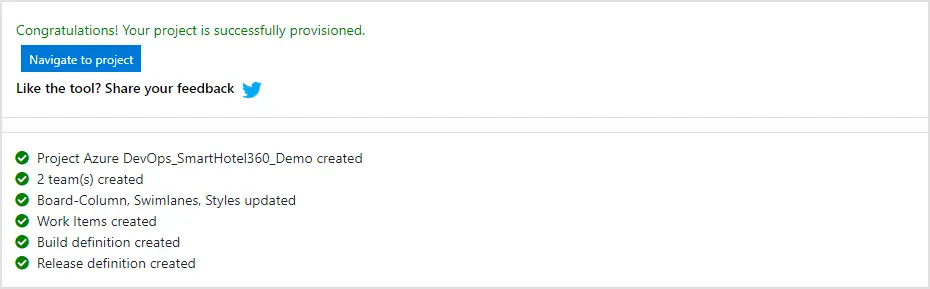
Click Navigate to project to move to the project page. This holds some sample work items, boards, backlogs, sprints, and other things that were listed as included in the template.
Let’s see how to connect the newly created project and visualize SmartHotel360 board items using the Bold BI dashboard through an Azure DevOps data connection.
Creating Azure DevOps SmartHotel360 performance dashboard
Let’s start creating a SmartHotel360 performance dashboard like the following.
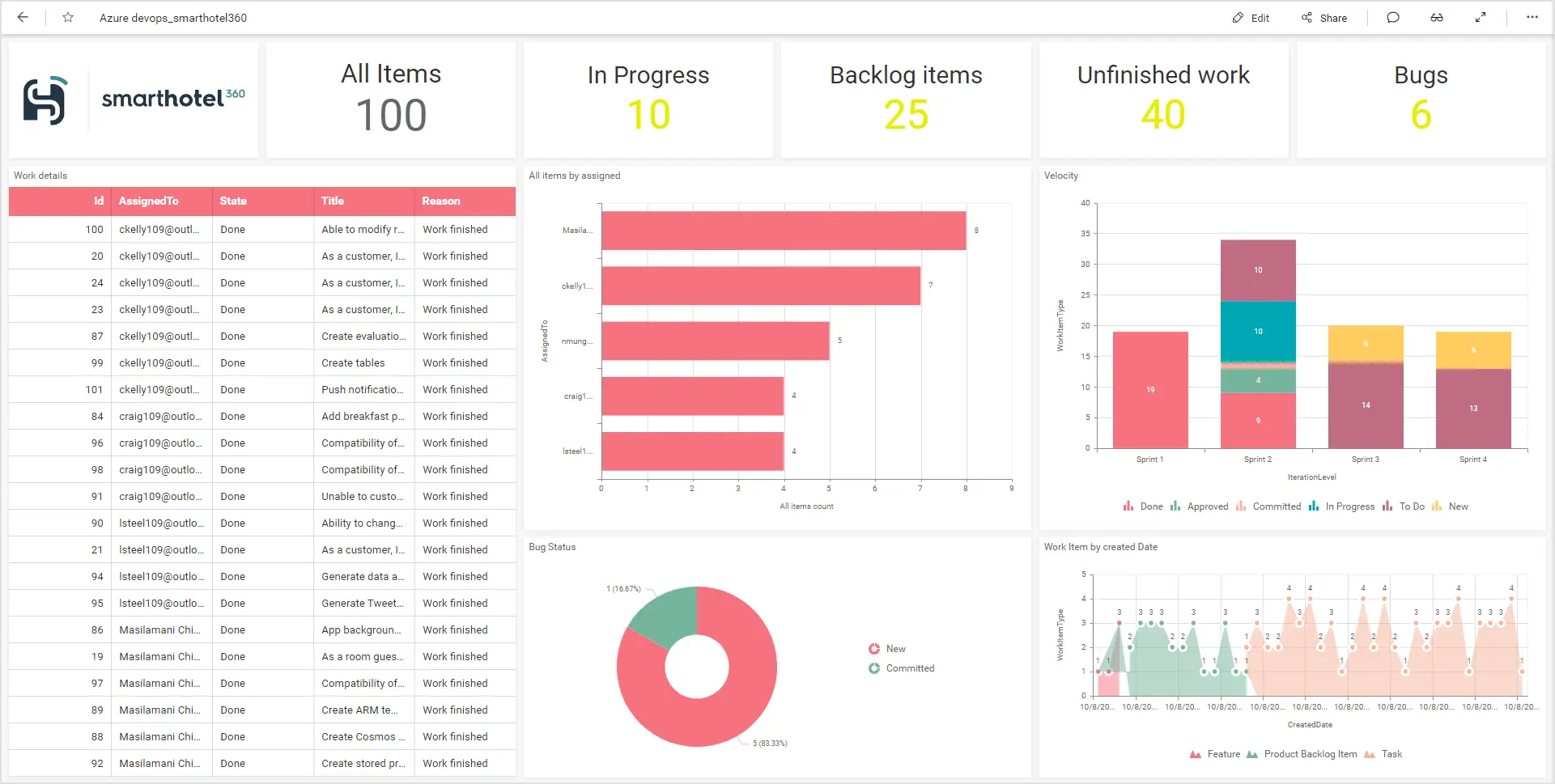
This dashboard focuses on tracking the SmartHotel360 performance through the following KPIs:
- Total work items and in-progress items.
- Total backlog and unfinished work items.
- Bug count and status.
- Work type by iteration level.
- Work item by created date and assigned to.
Check out our guide and create this dashboard from scratch.
To create the Azure DevOps data source from dashboard designer, follow the steps on this page. Also, use the steps in this documentation to authenticate with Azure DevOps web service.
After successful authentication, the NEW DATA SOURCE configuration panel opens, as shown in the following image.
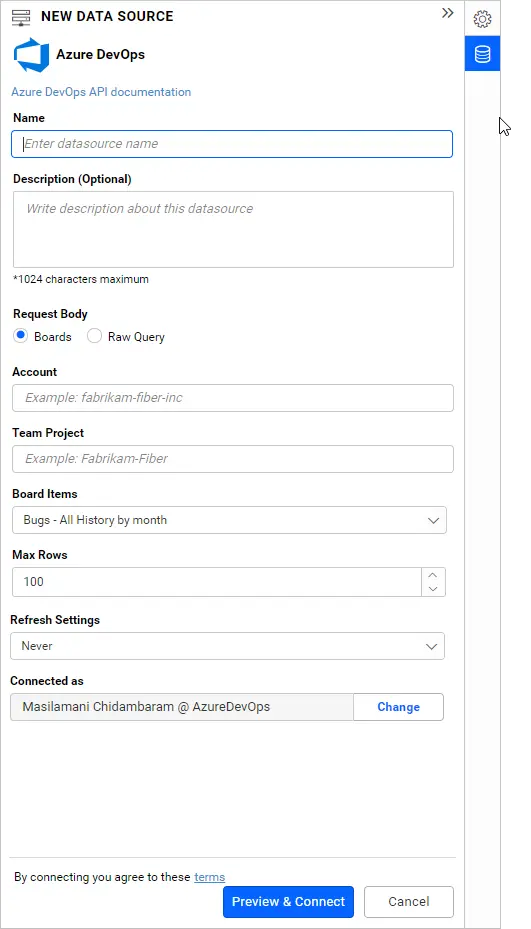
Specify the name and description as you wish. You can fetch the data from Azure DevOps through Boards (having items based on categories in work items like tasks, bugs, and stories) and Raw Query (Azure DevOps REST API endpoint).
For our dashboard, select Boards under Request Body.
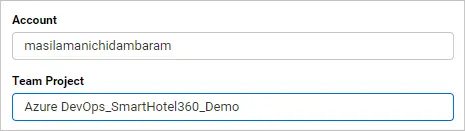
For Account, specify the name of the organization that holds the project in Azure DevOps (e.g., if the URL of your organization is https://dev.azure.com/fabrikam-fiber-inc./, then use, fabrikam-fiber-inc.). For Team Project, specify the project name you created using the SmartHotel360 project template (Azure DevOps_SmartHotel360_Demo).
Then, select the required board item from the Board Items drop-down list and click Preview & Connect to connect with the configurations set. Drag and drop the table and save the Azure DevOps data source. Once the data source is created, add the required widgets to your dashboard and connect data to them to visualize the metrics.
Conclusion
We hope this article guides you in provisioning a SmartHotel360 template-based project inside your Azure DevOps organization using the Azure DevOps Demo Generator service. We’ve also seen how to connect project work items and create a dashboard from scratch using Bold BI® and how to build a Azure DevOps sprint management dashboard using the Bold BI Azure DevOps dashboard template.
If you have any questions on this blog, please feel free to post them in the following comment section. Get started with Bold BI by signing up for a free trial and create more interactive business intelligence dashboards. You can also contact us by submitting your questions through the Bold BI website or, if you already have an account, you can log in to submit your support question.