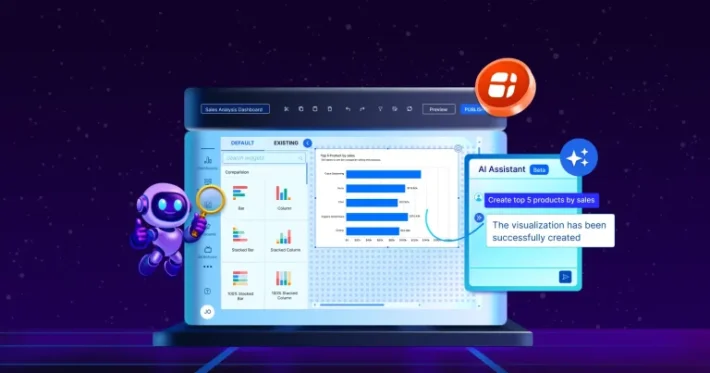
How to Build a Customer-Facing Analytics Portal with Bold BI


 13 min read
Introduction
Modern businesses are moving away from emailing spreadsheets and static PDFs because it creates real friction. Customers wait for updates, teams spend hours recreating dashboards, and it’s hard to control who sees what. As customer bases grow, these analytics workflows don’t scale, and they increase the risk of sharing the wrong data with the wrong client.
Customer-facing analytics portals solve this by giving external users a secure login and on-demand access to their own dashboards. The shift is already well underway: more companies are building dashboards directly into their own products, yet many of these built-in experiences still fall short of customer expectations, and in-house builds can take months of engineering time before they ship.
With embedded analytics platforms like Bold BI®, organizations can deliver a branded portal experience with role-based access and tenant-level separation, so customers get real-time visibility without creating extra support burden.
What is a customer-facing analytics portal?
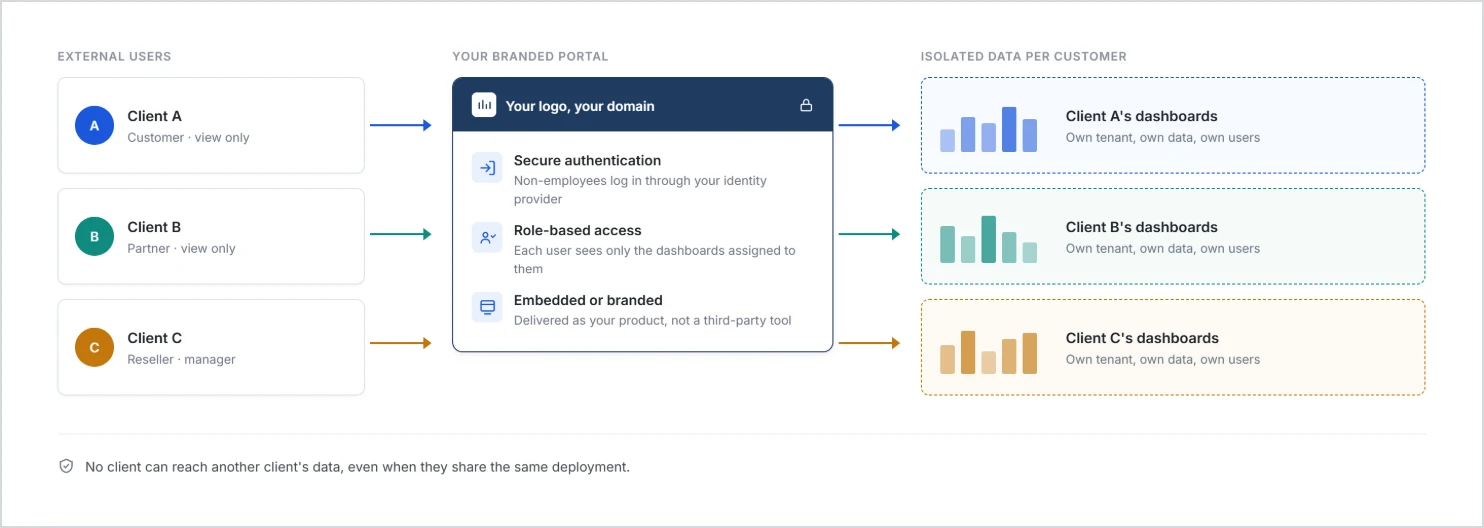
A customer-facing analytics portal is a secure web-based platform where external users such as clients, partners, or customers can log in and access dashboards and KPIs relevant to them.
Unlike internal BI tools, this kind of portal is designed specifically for external access. It focuses on:
- Secure authentication for non-employees.
- Data isolation between customers.
- Role-based access to dashboards.
- Embedded or branded analytics experiences.
This model is commonly used in:
- SaaS products offering analytics as a feature.
- Agencies delivering performance dashboards to clients.
- Platforms supporting partners or resellers.
- Enterprises sharing operational or financial metrics with customers.
Why a customer-facing analytics portal matters
Customer expectations are shifting toward instant self-service access to insights rather than waiting on monthly dashboards or support-team requests. This self-service analytics experience helps in the following ways.
1. Improves customer experience and transparency
A customer-facing analytics portal gives users real-time visibility into the metrics that matter to them. That gap is real: it’s a common complaint that the dashboards customers are given don’t actually help them make better decisions. Instead of requesting updates, customers can log in anytime to track progress, performance, or outcomes, building greater trust and transparency.
2. Reduces manual analytics and support workload
Without embedded analytics, teams often spend hours generating dashboards, exporting spreadsheets, or responding to repeated customer requests. That cost adds up: building and maintaining dashboards in-house is often a multi-month engineering effort that competes with the rest of the product roadmap. Providing analytics directly to customers reduces operational overhead and frees internal teams to focus on higher-value work.
3. Enables scalable client and partner analytics
As your customer base grows, delivering dashboards manually becomes unsustainable. A customer-facing portal lets organizations scale analytics across hundreds or thousands of external users while maintaining secure access controls.
4. Strengthens data security and access control
Sharing analytics externally requires strict permission management. Powered by role-based access and tenant isolation, this kind of portal ensures customers see only their own data, reducing the risk of data exposure.
5. Creates competitive differentiation and business value
Businesses that provide built-in analytics experiences stand out in a market that’s growing quickly, as more software vendors move analytics from an internal reporting tool to a customer-facing product feature. Customers increasingly expect analytics that genuinely help them make decisions, not just data they have to interpret themselves. A branded analytics portal enhances product value, improves customer retention, and supports long-term growth.
Skip this model, and each of the benefits above runs in reverse. Manual delivery keeps eating support hours. Customers wait instead of self-serving. Scaling breaks down as tenant count grows, and one misconfigured share can put the wrong data in front of the wrong customer. Here’s how to close that gap with Bold BI.
How to build a customer-facing analytics portal with Bold BI
Bold BI supports customer-facing analytics portals through multi-site multi-tenancy, allowing a single deployment to securely serve multiple customers with isolated dashboards, users, permissions, and configurations. The fastest way to put that in front of customers is white-labeling: Bold BI becomes the customer-facing analytics portal itself, direct, secure, and dressed entirely in your brand, with no separate application to build first.
Here’s how to set it up:
Build your customer portal with Bold BI white-labeling
Step 1: Deploy Bold BI Server
Bold BI Server deploys wherever your compliance rules say customer data needs to live: on-premises, in your own cloud, or in a private cloud. Once deployed, it becomes the centralized platform behind every tenant site you create. Get this decision right early: moving a live customer base to a different deployment model later is a far bigger project than choosing correctly up front.
Step 2: Apply your branding
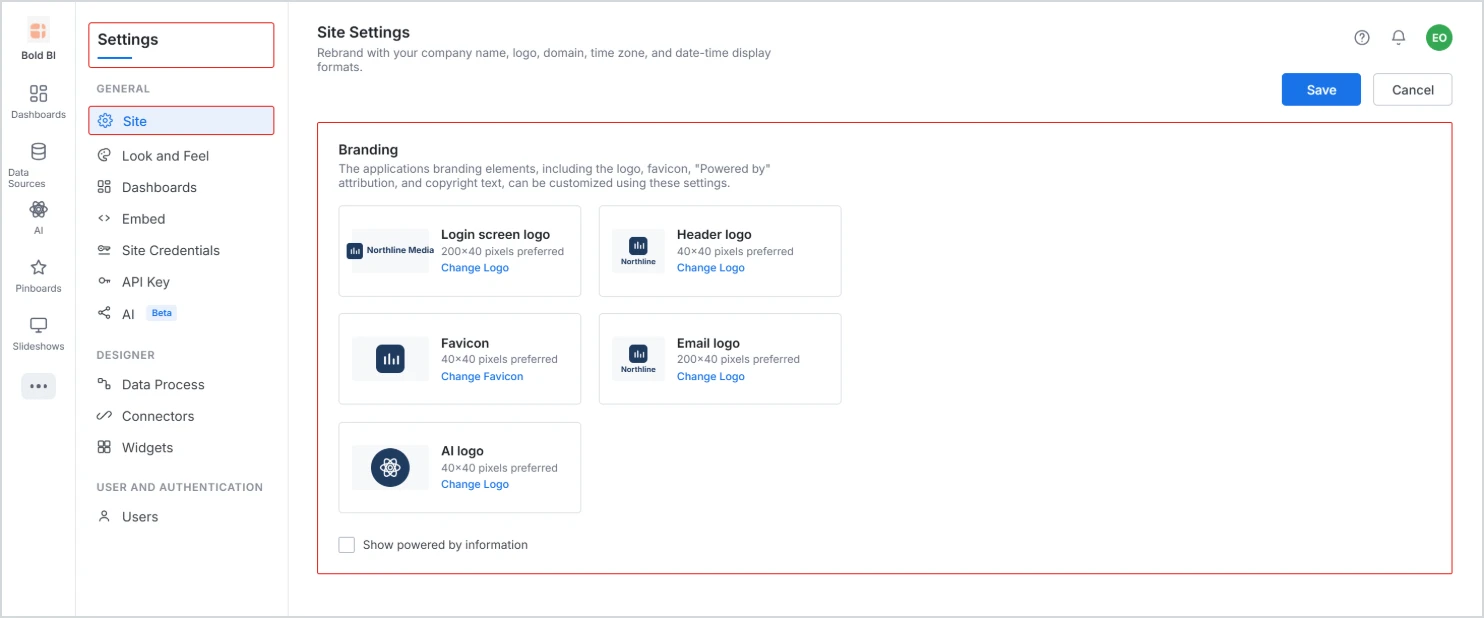
Once Bold BI Server is deployed, the rest of white-labeling is about making the portal disappear into your product. Under Site Settings, you can update the site name and replace every Bold BI logo (login, header, email, favicon). You can also customize or hide the “Powered by” footer and copyright line, and point the portal at your own custom domain. Finally, set theme colors, fonts, language, and date/time formats to match your application and your customers’ locale.
None of this is purely a technical decision; it’s a trust decision. A customer who lands on a portal that looks like a third-party tool is more likely to question whether their data is actually isolated from other customers.
A portal that looks native to your product helps eliminate that concern from the start. See the Bold BI white-labeling documentation for the exact click path through each setting.
Step 3: Configure authentication using your own credentials
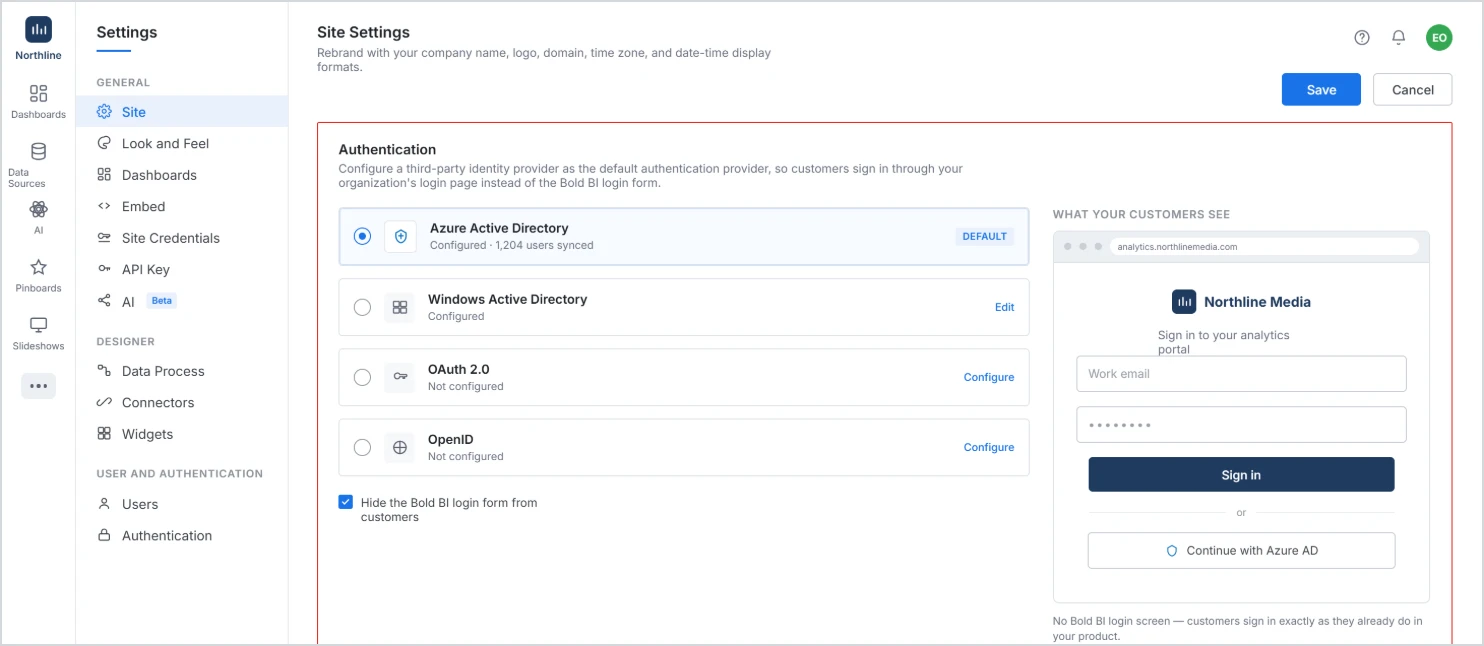
A customer-facing portal needs branded authentication, not a Bold BI login screen. Connect your existing identity provider (Azure AD, OAuth 2.0, OpenID, or similar) so customers log in exactly the way they already log in to your product.
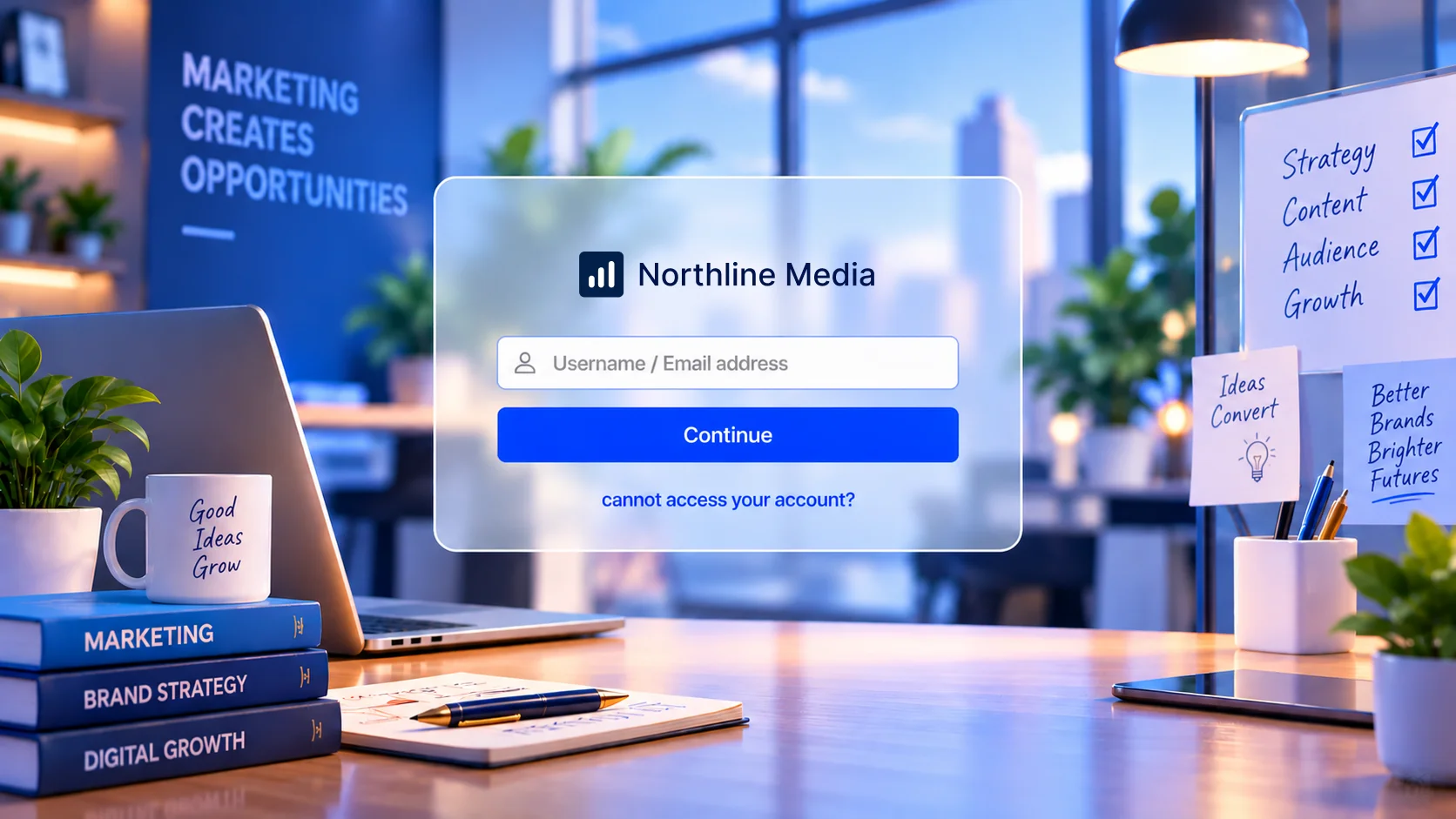
That one change removes a moment of friction, and a support ticket, that would otherwise chip away at the ‘this feels native’ experience.
Step 4: Create customer tenant sites and apply common branding
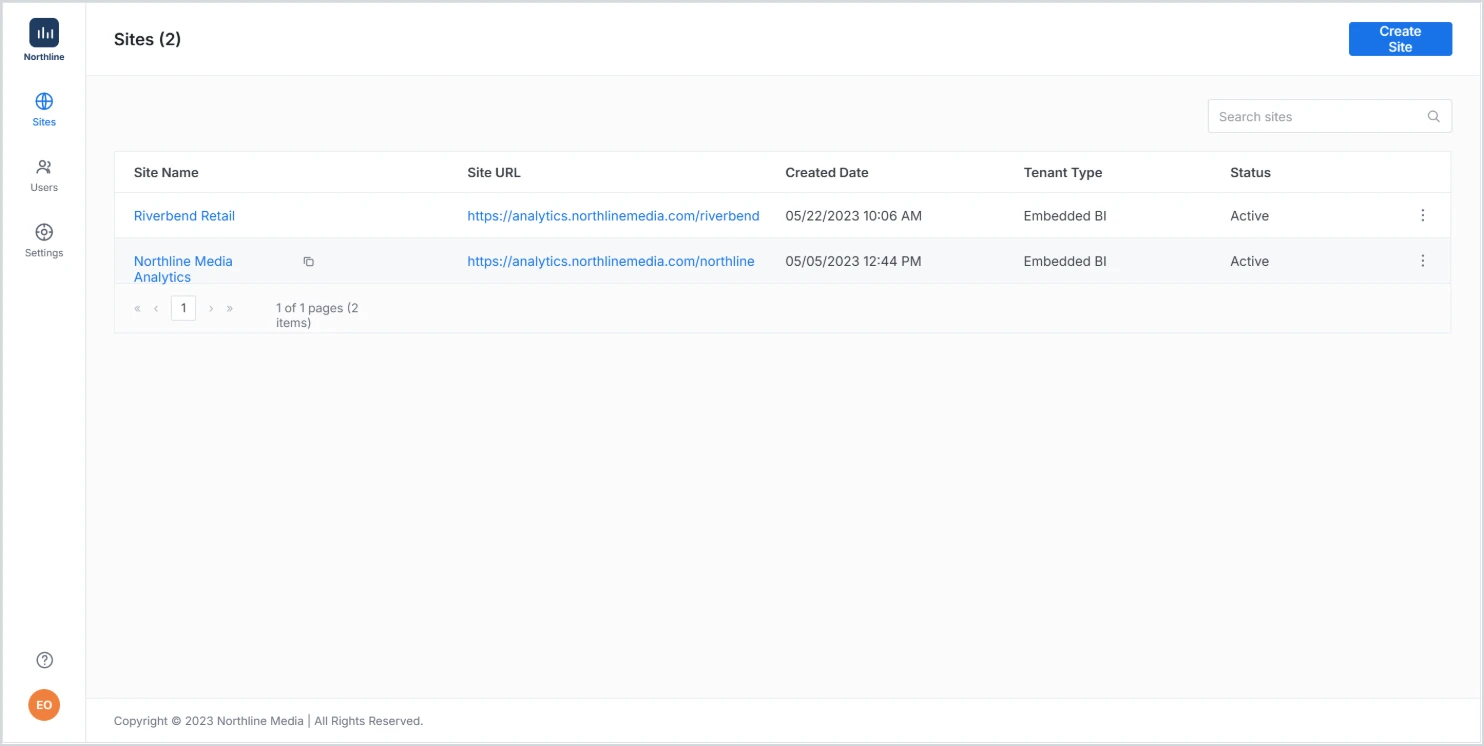
After configuring white-labeling, create a separate tenant site for each customer. Open the Site Management module and click Create Site. Each tenant site can have its own dashboards, users, permissions, branding, and data sources, securely isolated while remaining centrally managed. If you manage multiple tenants, use Inherit Global Settings to apply common branding across all of them at once.
This is where the white-labeled portal experience scales beyond a single customer. Each tenant site remains isolated, but shared branding and inherited settings help maintain a consistent look and feel across all customer environments. Rather than managing separate analytics experiences for every client, organizations can centrally manage multiple branded sites while delivering a unified customer-facing portal experience. For detailed instructions on creating and configuring tenant sites, refer to our documentation.
Step 5: Add customer users and configure permissions
This step is what actually keeps customers apart. Tenant sites (Step 4) put each customer in their own container. Permissions decide who inside that container can see what. Get permissions wrong, and one customer can end up looking at another customer’s dashboard.
Add external customer users to the appropriate tenant site from the User Management page. Open Users, select Add User, and add users either individually or in bulk using a CSV file. Organize users into relevant groups, such as Client A Viewers, Client B Managers, or Internal Admins, to simplify permission management.
Next, configure dashboard access permissions. Open the required dashboard, select Actions, and then Permissions. Grant customers read-only access, while reserving edit and management permissions for internal administrators. For a complete overview of permission models, access levels, and resource-sharing controls, refer to the documentation.
With read-only access, customers can securely explore dashboards and insights without the risk of modifying shared dashboards or changing permissions for other tenants.
Step 6: Build customer dashboards and apply row-level security
Create dashboards tailored to each customer or tenant. In the Dashboard Designer, build views using customer-specific KPIs, widgets, and data sources that align with the insights each customer needs to track. To create dashboards that are both visually effective and easy to use, follow these 10 Best Practices for Designing Powerful Dashboards.
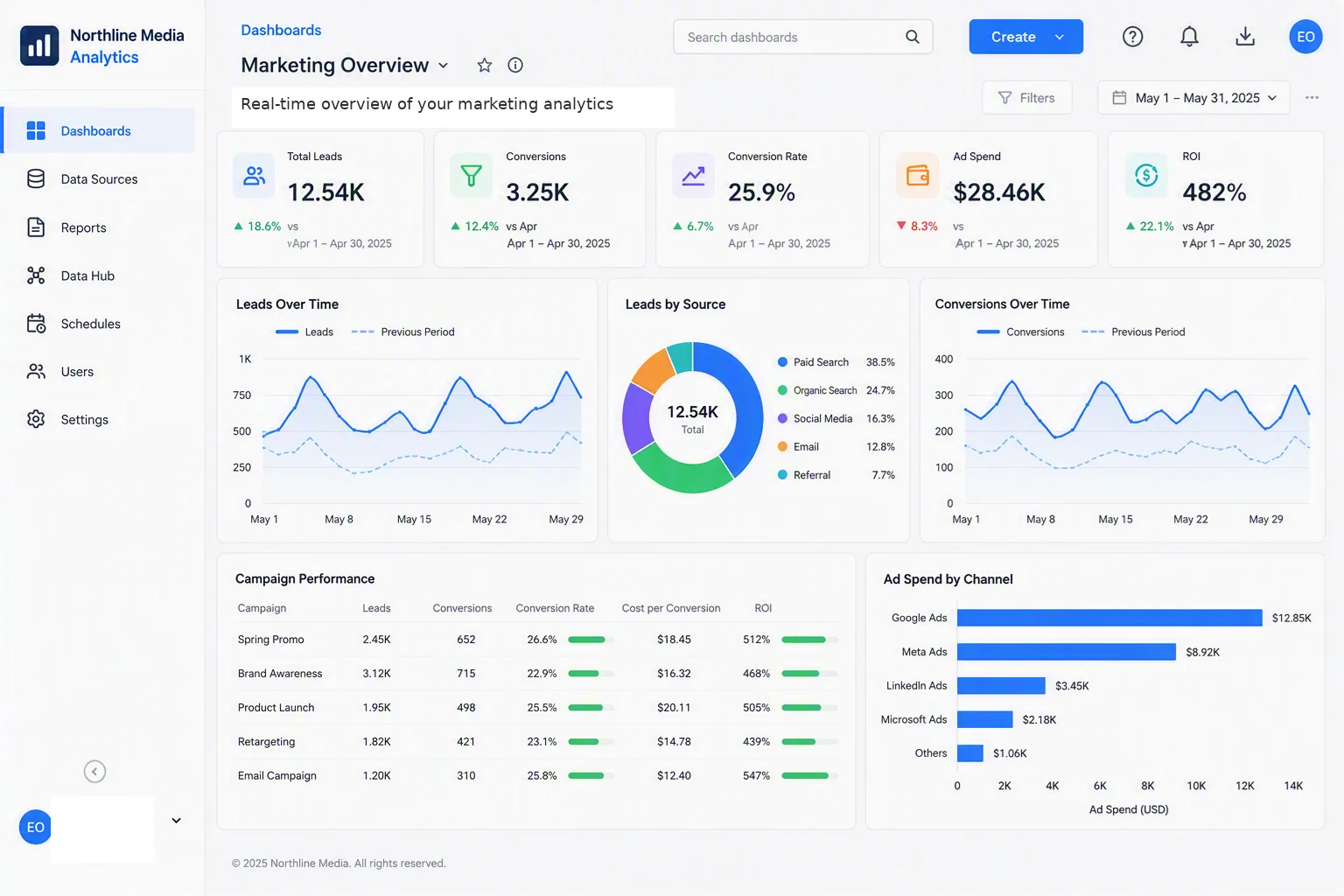
Depending on your setup, create separate dashboards per tenant, reuse templates, or apply row-level security to a shared dashboard so each customer only sees the data assigned to them.
There are two different protections at work here, not one. Tenant separation keeps Customer A’s site away from Customer B’s site. Row-level security keeps two people inside the same shared dashboard from seeing each other’s rows. That second protection matters the moment you’d rather maintain one dashboard template than a hundred copies of it.
Either way, the customer sees the same thing: their numbers, nothing else. No guessing which dashboard belongs to them and, when properly configured, no other tenant’s data mixed in.
Step 7: Provide customers access to the branded portal
Once configured, customers access the analytics portal directly through your branded domain, for example analytics.yourcompany.com. They log in, see only the dashboards assigned to their tenant, and interact with analytics in a fully branded environment. Bold BI itself now functions as the customer-facing analytics portal, with consistent branding, security, and scalability across every tenant.
At this point the portal stops being a project you maintain and becomes a product feature customers expect, one that scales to the next hundred accounts without a new deployment.
Use case: Customer portal for a marketing agency
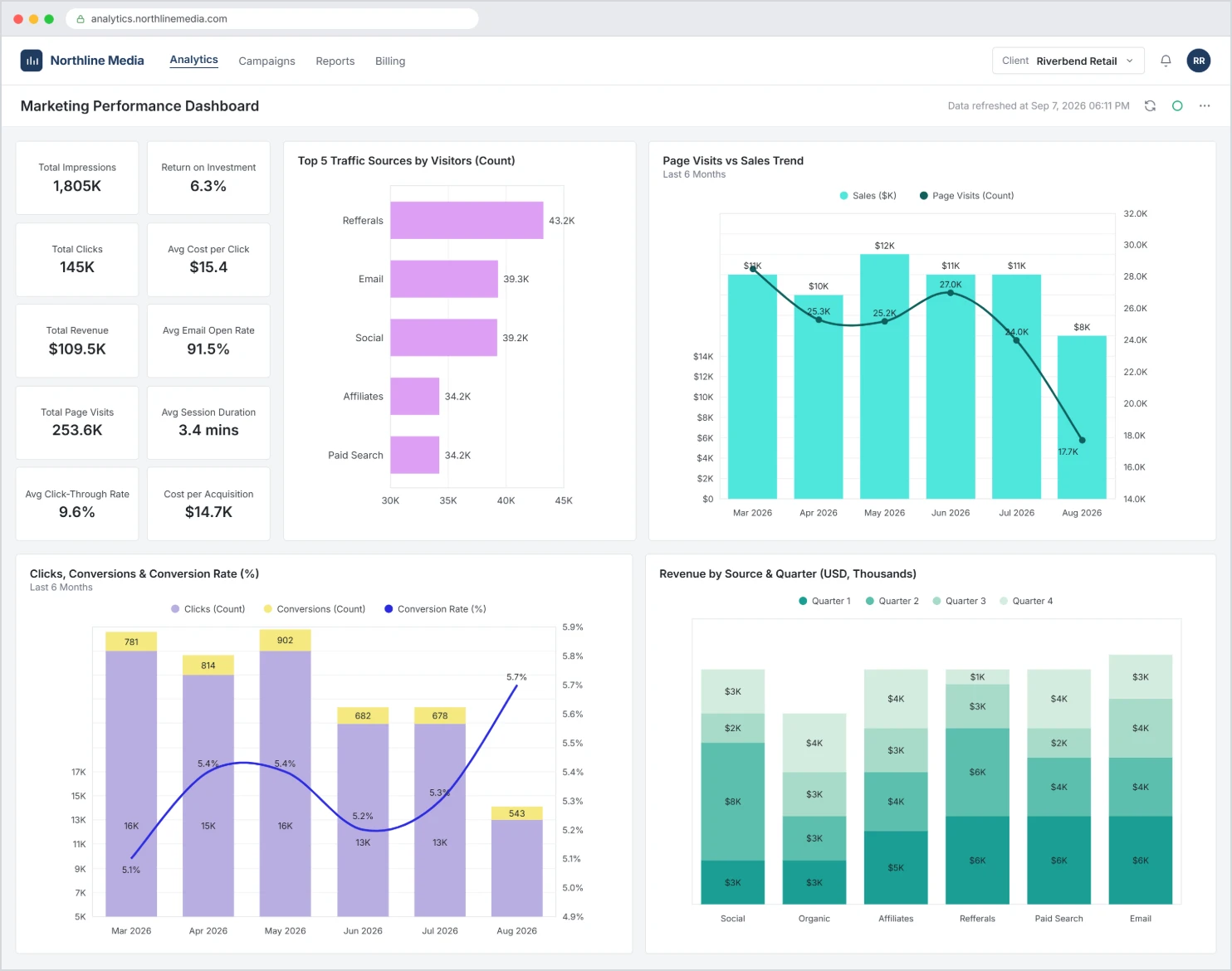
Consider a digital marketing agency managing campaigns for dozens of clients. Clients regularly want to see metrics such as lead volume, ad spending, conversions, keyword rankings, and campaign ROI.
- Challenge: Traditionally, agency teams collect data from multiple platforms and manually create dashboards for each client. As the client base grows, analytics becomes time-consuming, difficult to scale, and often leads to requests for updates between analytics cycles.
- How Bold BI solves this for the agency: Because the agency doesn’t have its own customer-facing application, it uses Bold BI’s white-labeling capabilities to create a branded analytics portal under its own domain, logo, colors, and authentication experience. Each client receives secure access to their own tenant, where they can view live dashboards for campaign performance, ad spending, conversions, SEO, and email marketing metrics. Tenant isolation and role-based permissions ensure clients only see their own data.
- Business outcome for the agency: Clients gain self-service access to real-time marketing insights, while the agency reduces manual analytics effort, improves client transparency, and scales analytics delivery without building a custom portal.
Why choose Bold BI for customer-facing analytics portals?
Customer-facing analytics portals are becoming a key differentiator in customer experience and product value. Whether you’re building an agency client portal or any other multi-customer analytics experience, Bold BI provides the white-labeling foundation to deliver secure, scalable, and branded portal-style solutions. Bold BI stands out as a platform, not a single feature, spanning:
- Multitenant support for scalable client analytics: A single Bold BI deployment provisions a separate, isolated site per customer, so onboarding your hundredth client takes the same setup as your first, no new infrastructure required.
- Secure, role-based access controls: Permissions are enforced down to the dashboard and data level, so a customer with read-only access can never edit, export, or see another tenant’s information, even by accident.
- White-label portal experiences: Logos, domain, theme, and authentication can all be replaced with your own branding, so the portal reads as a native feature of your product, not a bolted-on third-party tool.
- Cost-effective alternative to many enterprise BI platforms: Flat, predictable pricing means the cost of the portal doesn’t spike as you add tenants, users, or data volume, a common pain point with consumption- or capacity-based pricing models.
- Flexible deployment options for SaaS and on-premises needs: Whether your customers require cloud delivery or on-premises hosting for compliance reasons, the same tenant, user, and dashboard foundation works across both.
- AI-assisted, tenant-scoped insight for every customer: Instead of just displaying a campaign-performance chart, a customer can ask ‘why did our conversion rate drop this month?’ and get an answer that traces it to a specific channel or audience segment, scoped automatically to their own tenant.
Bold BI is built specifically for white-labeling customer-facing portals, with a flat, predictable pricing model and self-hosted deployment options as first-class features rather than enterprise add-ons.
Final thoughts and next steps
As products scale, shared analytics models introduce risk, complexity, and operational drag for multi-client platforms. With Bold BI, you can deliver secure, branded analytics portals that scale with your customers by white-labeling Bold BI itself as the portal. That works whether you’re a marketing agency or any other multi-customer business serving hundreds of accounts.
Explore the Bold BI documentation to learn more about site creation, tenant onboarding, and secure dashboard sharing.
Ready to get started? Sign up for a free trial or request a live demo to see how quickly you can build and launch customer-facing analytics portals with Bold BI.
Frequently asked questions
- 1.
What counts as external access versus internal BI?
A customer-facing analytics portal is designed for external users, clients, partners, or customers, and it enforces strict data isolation, role-based access, and branding that matches your product. Internal BI tools are built for employees and don’t need that same tenant-level separation.
- 2.
Do customers need technical knowledge to use the portal?
No. Customers only interact with dashboards and filters. All technical setup, data connections, permissions, and embedding are handled by the business or product team.
- 3.
Is customer data isolated from other customers?
Yes. Each customer’s data is isolated through tenant separation, role-based access controls, and optional row-level security, ensuring users can access only authorized data.
- 4.
When should a business build a customer-facing analytics portal?
It’s useful when customers need regular access to insights, when manual analytics is becoming time-consuming, or when analytics is part of the product value.
- 5.
What is the difference between embedded analytics and a customer-facing analytics portal?
Embedded analytics is one delivery method: dashboards placed inside an application. A customer-facing analytics portal is the broader model, an isolated, secure environment per customer, most commonly delivered as a white-labeled portal.
- 6.
When should this model be used instead of shared dashboards?
Use a portal model when multiple customers need analytics access and data must remain isolated, because shared dashboards become harder to secure and manage at scale.
- 7.
How does Bold BI support multi-customer analytics delivery?
Bold BI uses multi-site multi-tenancy as the shared foundation. Teams deliver it as a white-labeled portal, as this guide covers, with each customer provisioned as a separate site with its own dashboards, permissions, and configuration.
- 8.
Can it be branded to match a product?
Yes, it can be branded to align with your product experience so it feels like a native feature.
- 9.
Does every customer require a separate BI deployment?
No, a single Bold BI deployment can support multiple customer portals through multi-site architecture.
- 1.