Dashboard Parameters vs. Filter Parameters: Key Differences


 16 min read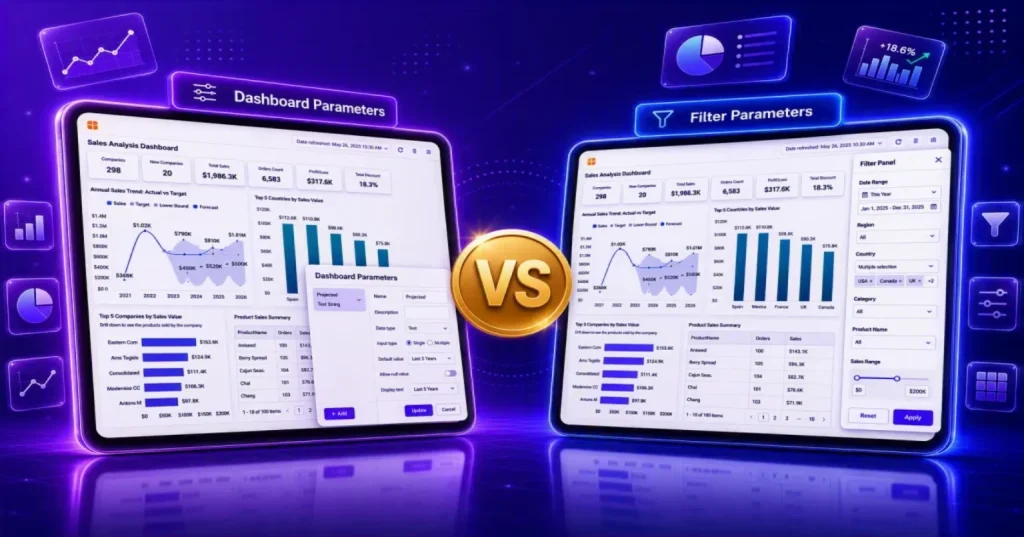
TL;DR: Dashboard parameters and filter parameters serve different purposes in Bold BI®. Dashboard parameters control data retrieval before a dashboard loads, while filter parameters enable runtime filtering in embedded applications. Understanding how they differ helps organizations build scalable, personalized, and well-governed analytics experiences.
Introduction
Modern analytics applications must deliver personalized experiences without increasing dashboard complexity. While dashboard parameters have long been used to control data retrieval and dashboard behavior, embedded analytics adds a runtime filtering layer through filter parameters.
Although these features are often discussed together, they solve different problems. Dashboard parameters help control what data is retrieved, while filter parameters help control what data is displayed in embedded applications. Understanding the differences between them helps companies choose the right approach for query-time filtering, runtime personalization, and embedded analytics scenarios.
Before comparing these features, let’s first understand how dashboard parameters work and where they fit within a dashboard.
What are dashboard parameters?
Dashboard parameters are global placeholder values that dynamically control queries, stored procedures, calculated fields, expressions, and filters. They are evaluated before data is loaded, ensuring dashboards retrieve only the data required for a specific context.
Where can dashboard parameters be used?
Dashboard parameters can be used across multiple dashboard components, including:
- Queries and custom SQL.
- Stored procedures.
- Calculated fields.
- Expressions.
- Filters.
- Data source connection properties.
Because they are applied before data retrieval, dashboard parameters help optimize performance while supporting reusable dashboard designs.
When to use dashboard parameters
Use dashboard parameters when you need to:
- Filter data before retrieval.
- Improve query performance.
- Personalize dashboards for different audiences.
- Pass values into stored procedures.
- Reuse a single dashboard across multiple scenarios.
- Centralize filtering logic.
When not to use dashboard parameters
Dashboard parameters may not be the ideal choice when:
- You need rapid exploratory analysis.
- Filter values change frequently after dashboard load.
- Interactive filtering is the primary requirement.
- Embedded applications require runtime-controlled filtering.
In these situations, filter parameters or dashboard filters may provide a better user experience.
Benefits of dashboard parameters
Dashboard parameters help companies:
- Reduce query load.
- Improve dashboard performance.
- Reuse dashboard designs.
- Maintain consistent business logic.
- Deliver personalized experiences.
Now that we’ve explored the purpose, benefits, and use cases of dashboard parameters, let’s see how to configure them in Bold BI.
How to configure dashboard parameters in Bold BI
Dashboard parameters are configured within a dashboard’s data source to dynamically influence data retrieval. They allow you to dynamically filter and control data across widgets using user input. To configure dashboard parameters in Bold BI:
1. Log in to the Bold BI dashboard page and go to your dashboards list.
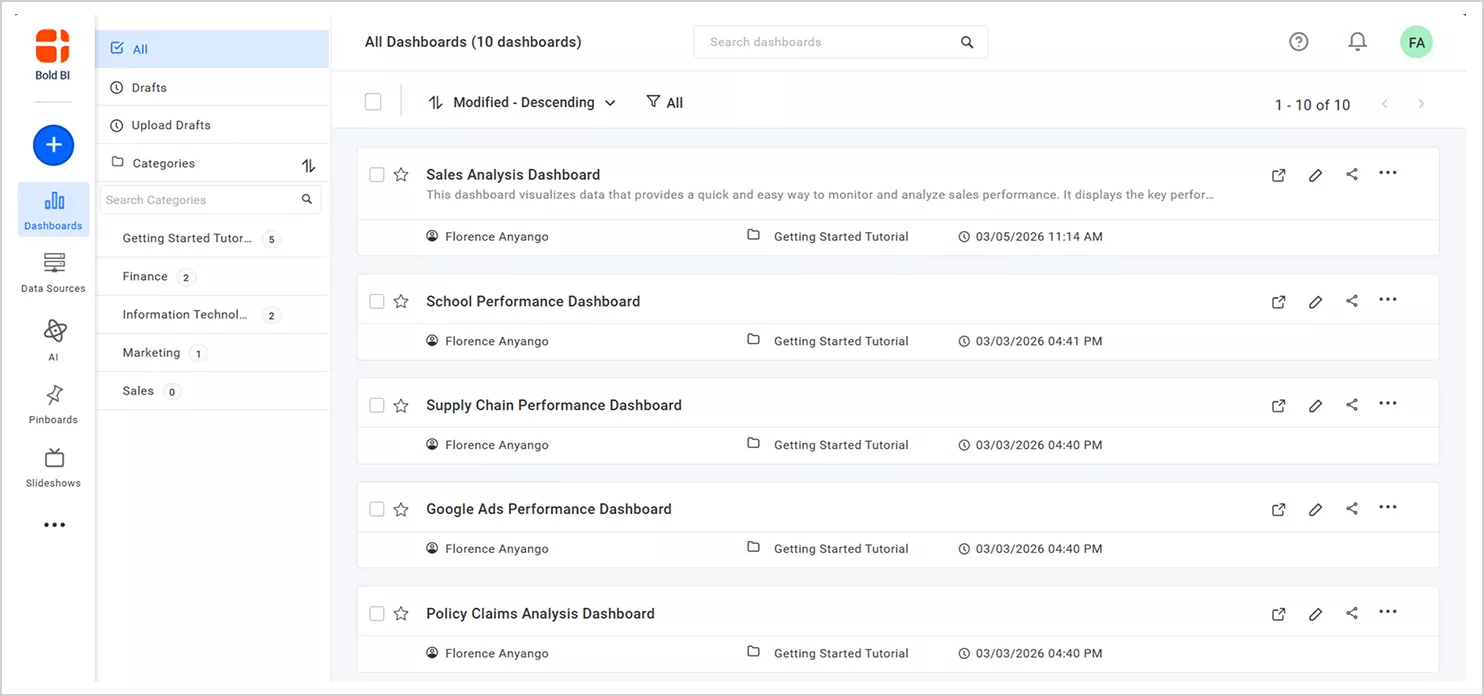
2. Select the edit icon beside the dashboard to which you want to apply parameter filtering.
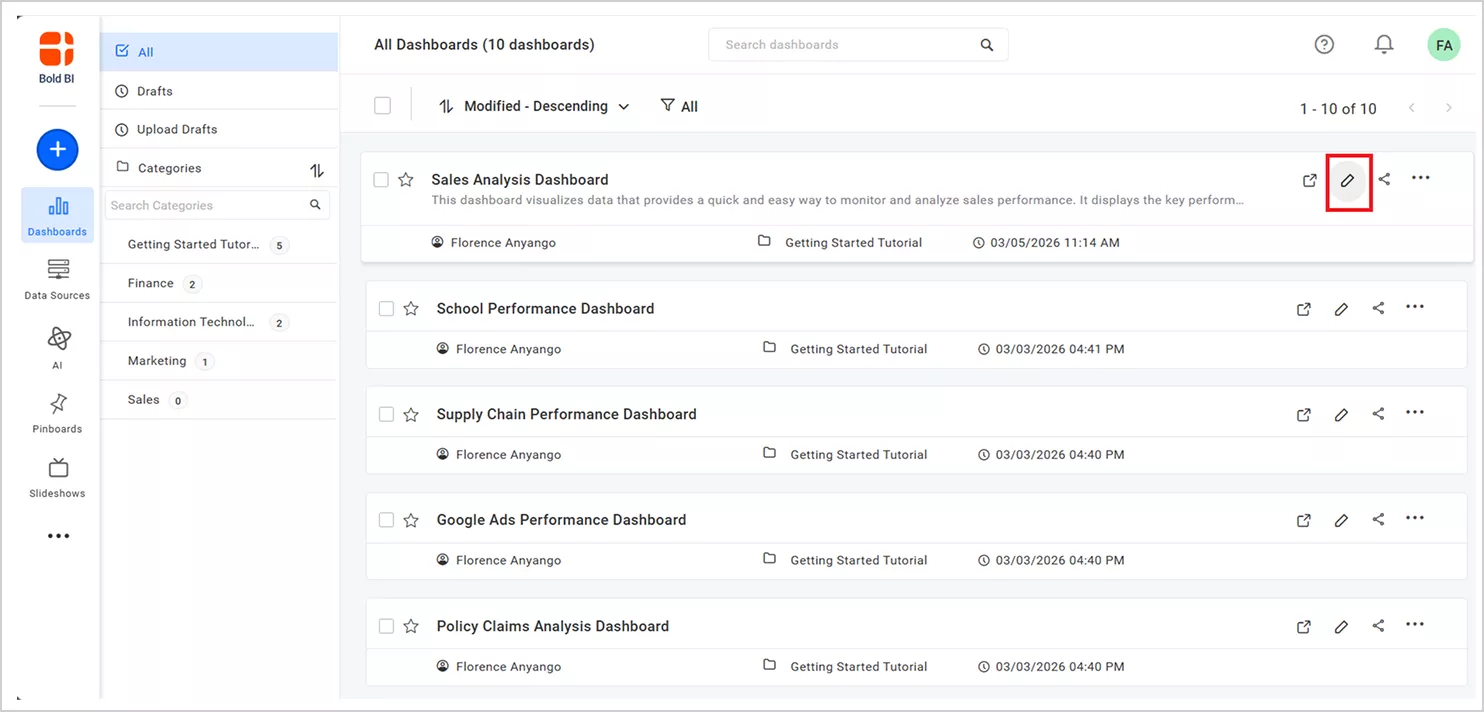
The dashboard editing page will open.
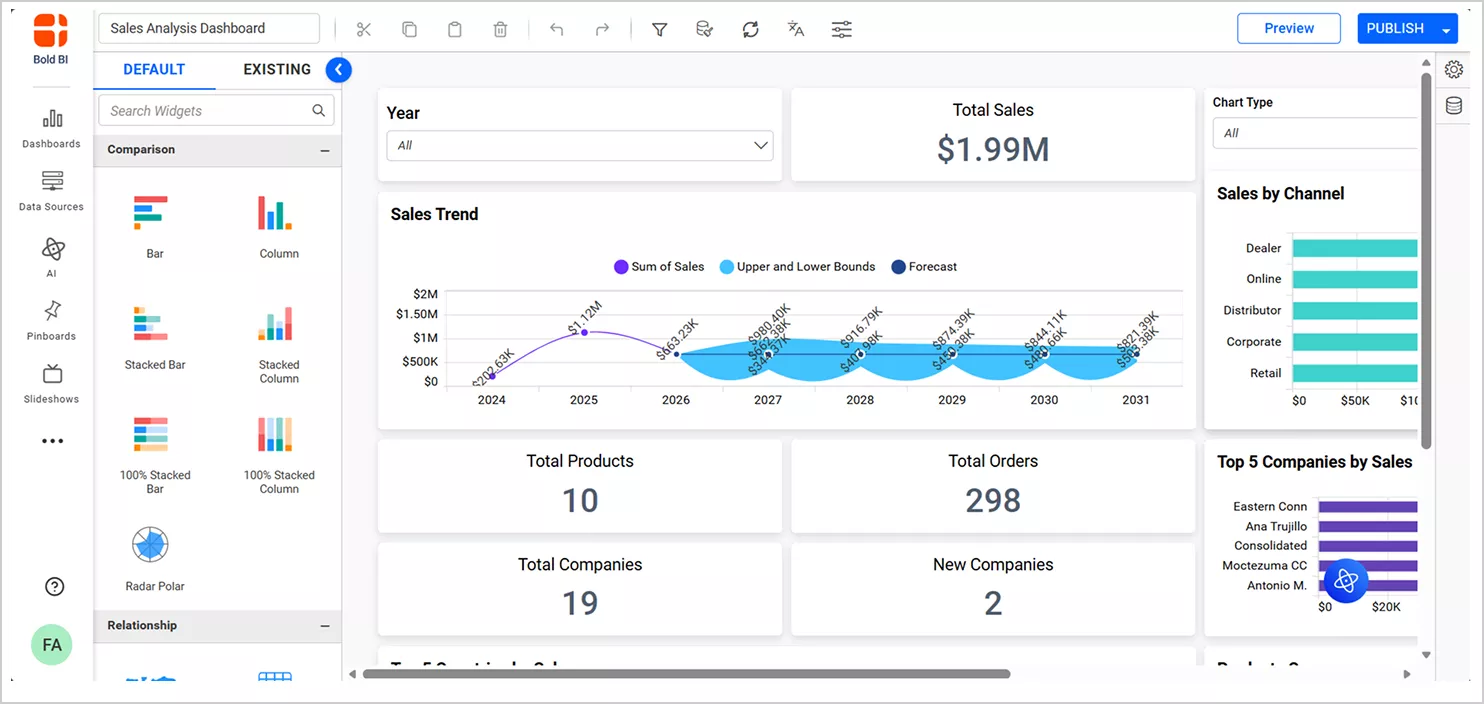
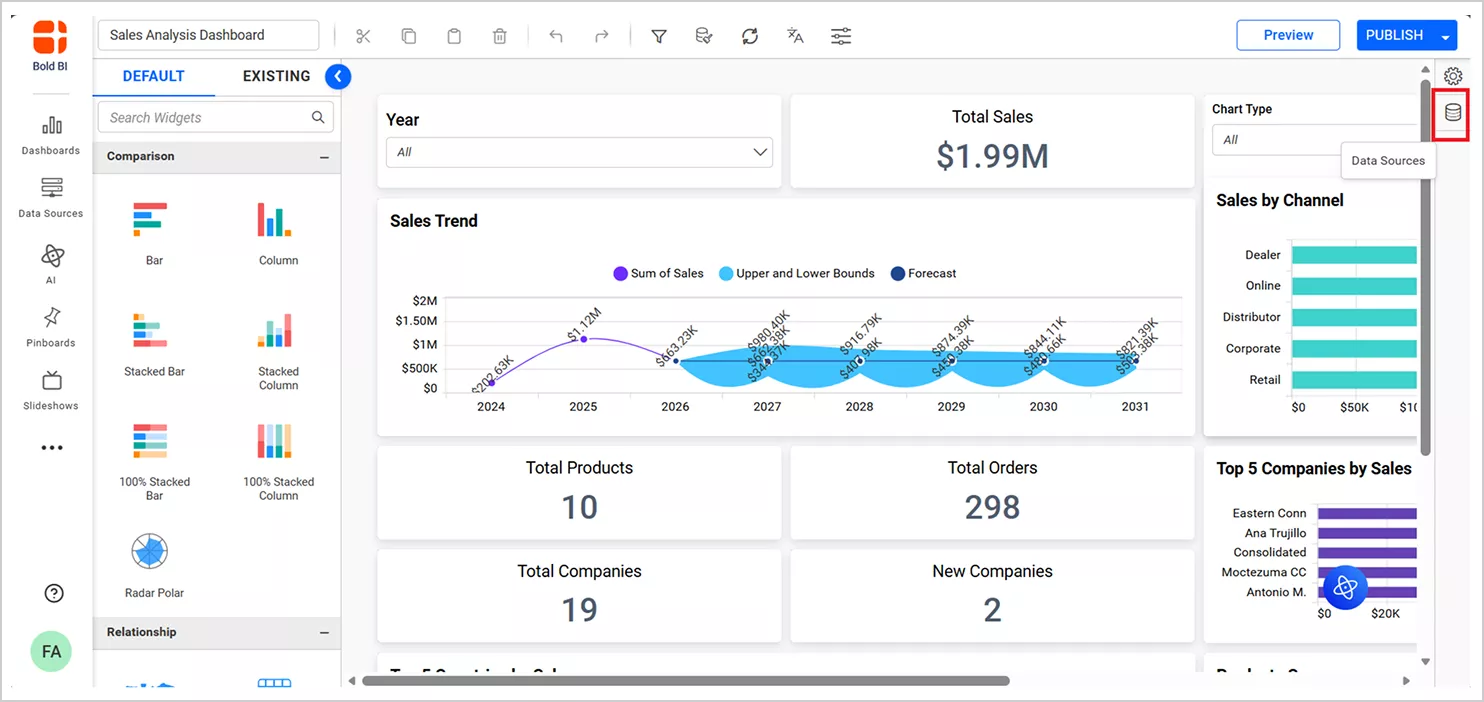
3. On the right side of the designer, select the data sources icon and then select the edit icon beside the datasets to which you want to apply parameters.
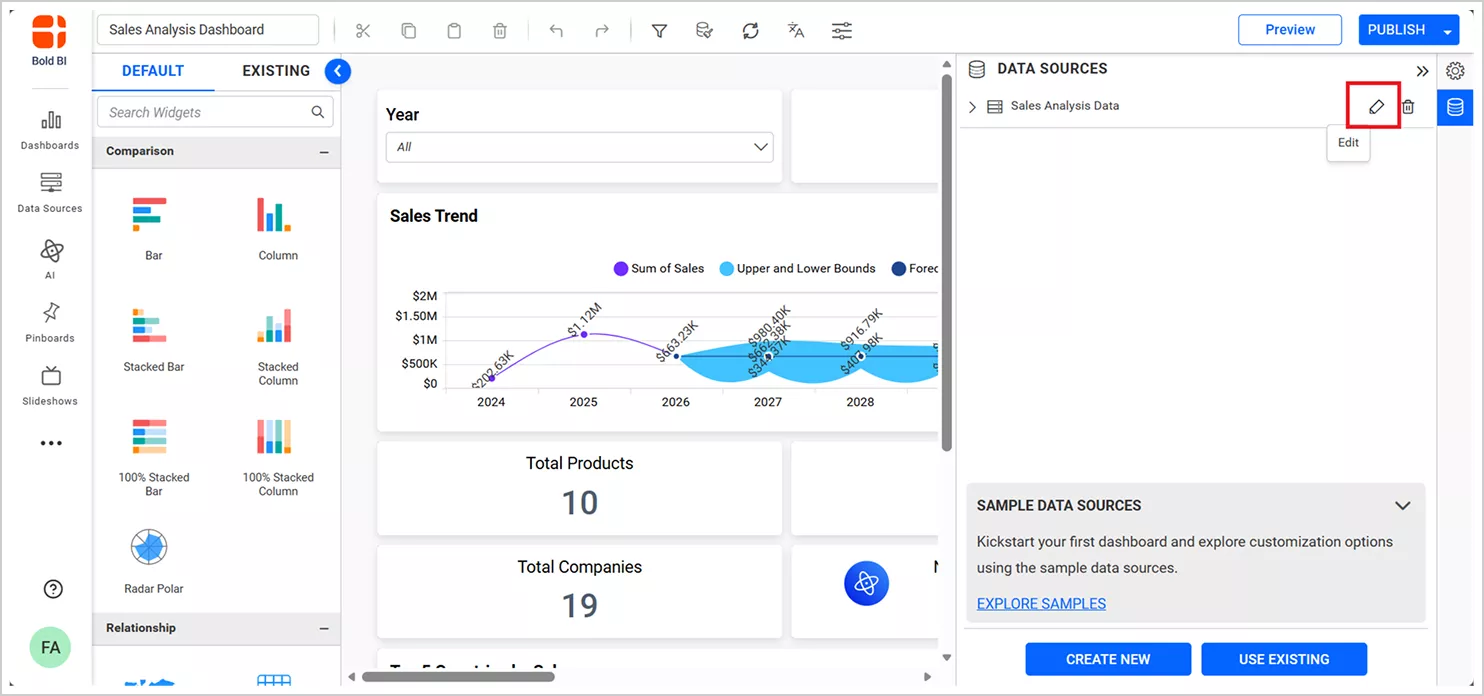
The data source editing page will open.
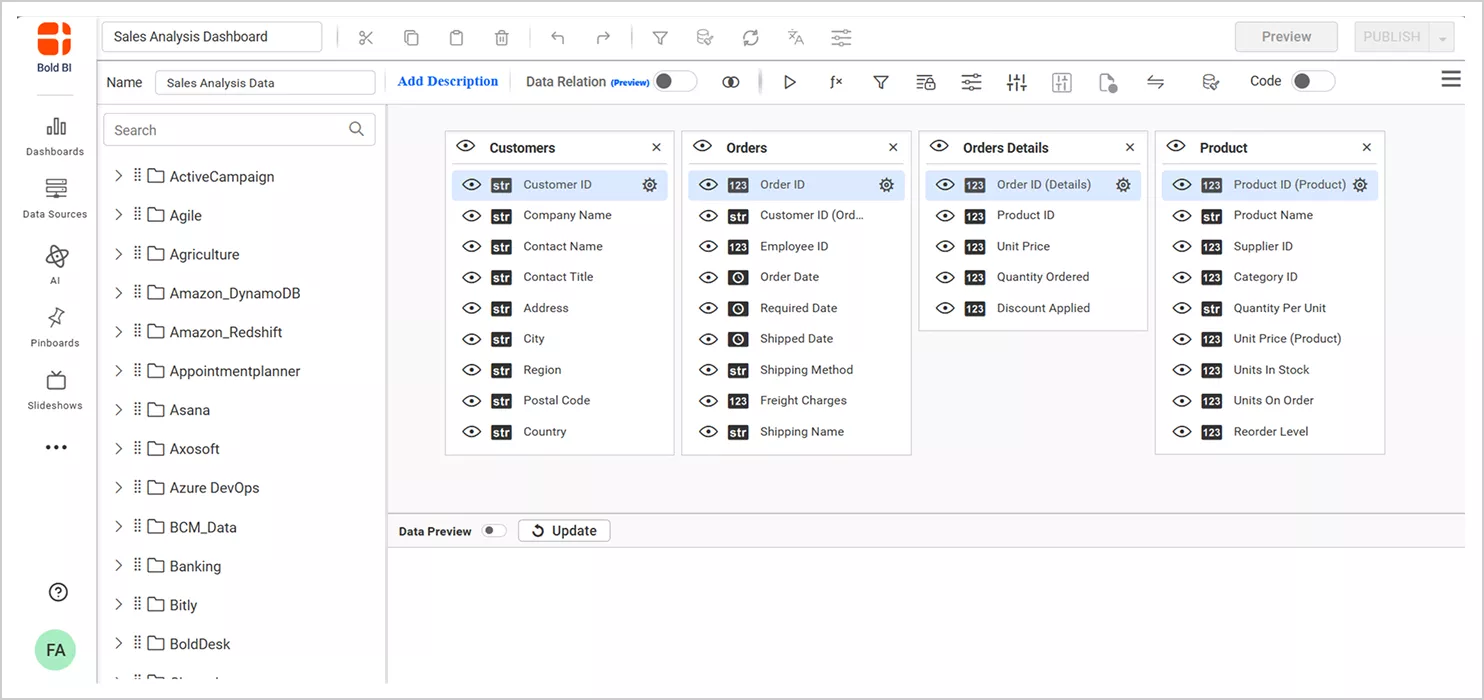
4. Select the dashboard parameter icon in the toolbar.
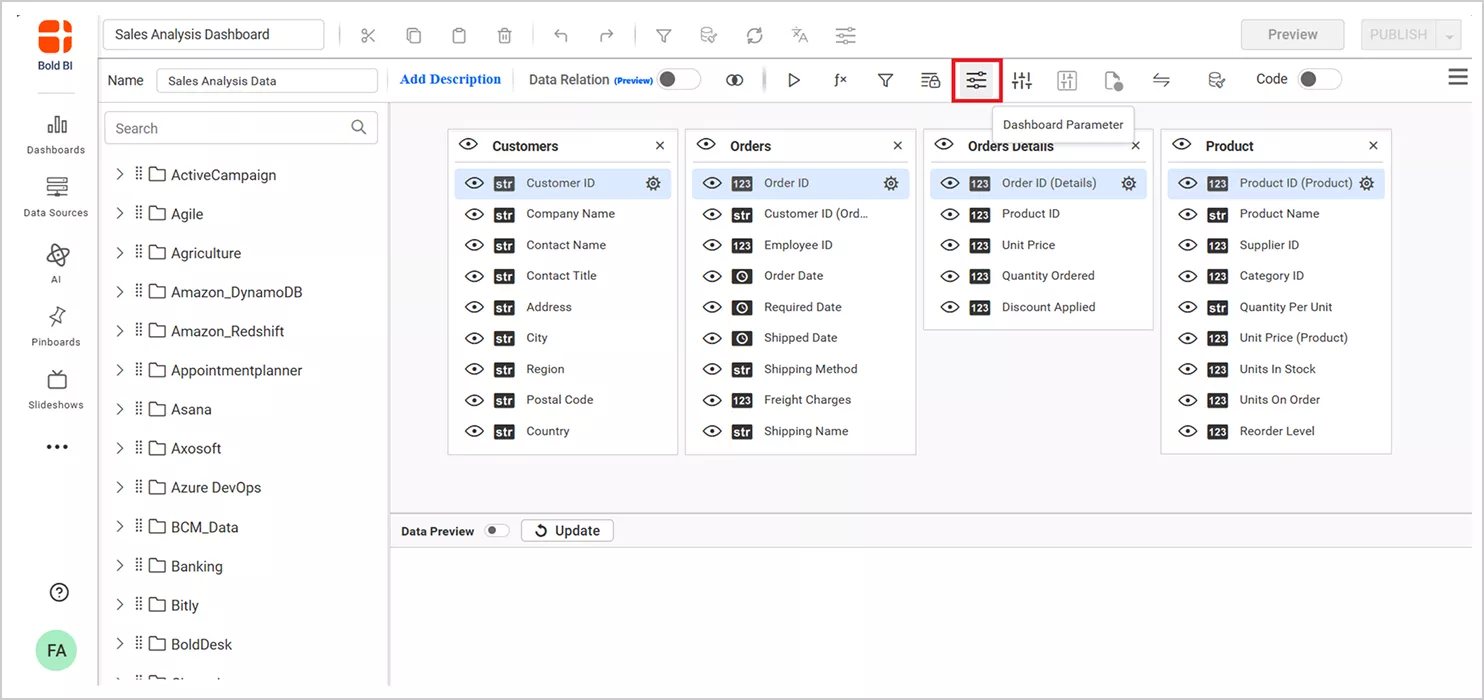
The dashboard parameter settings will open.
5. Enter a name in the Name field. Select a type from the Type dropdown. Set a Current Value if required. Then, select Save to create the dashboard parameter
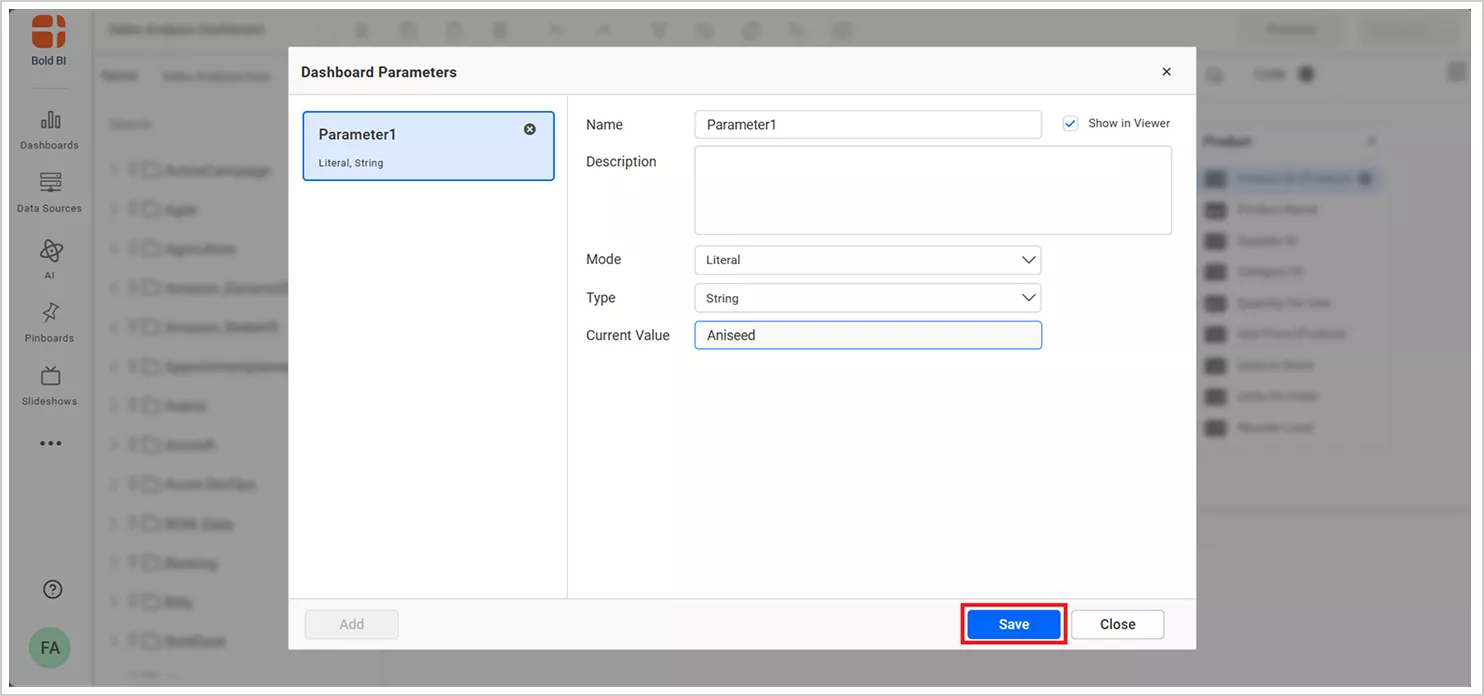
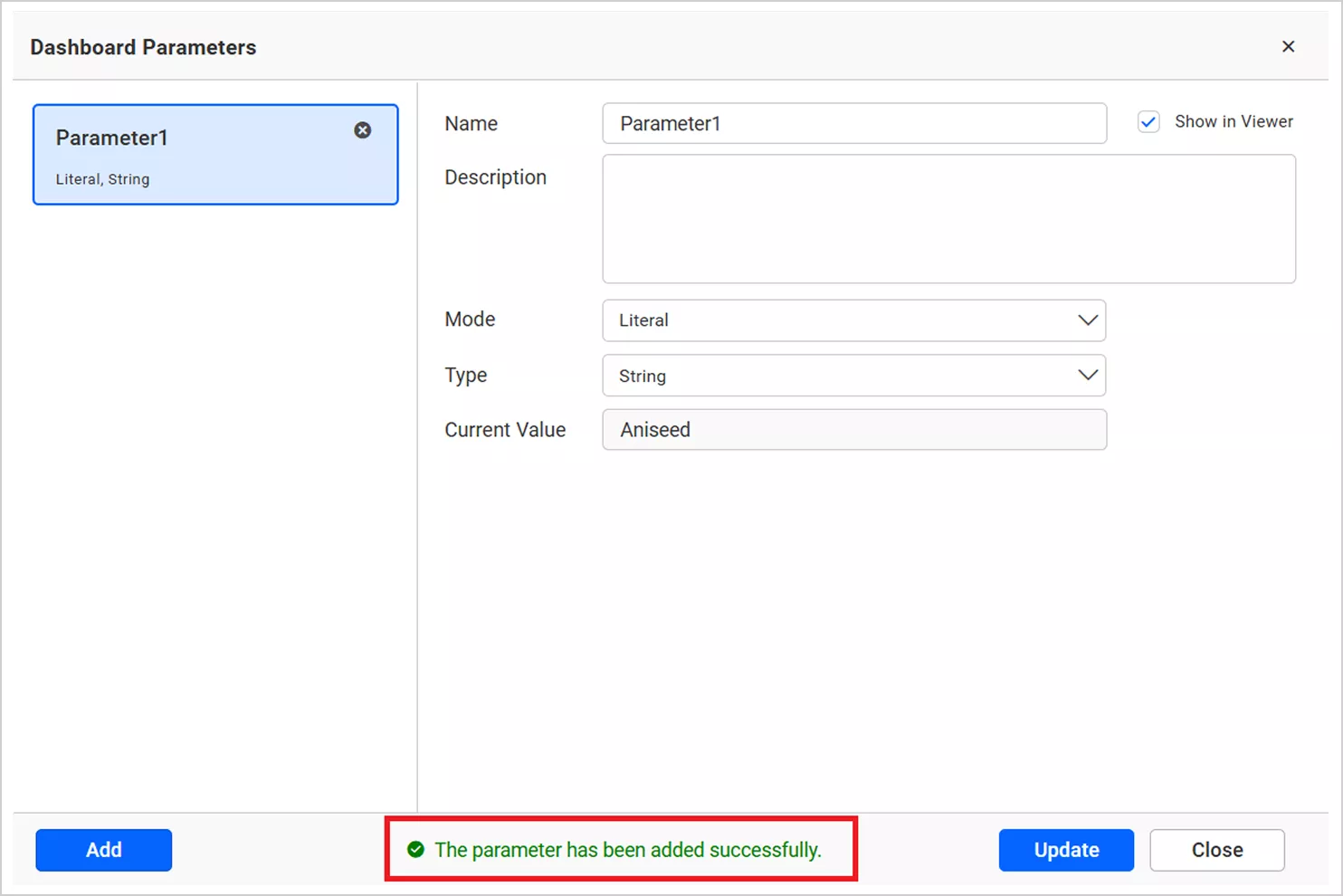
Once saved, the data source editing page will open.
6. Select Save in the data source editor to save the data source changes.
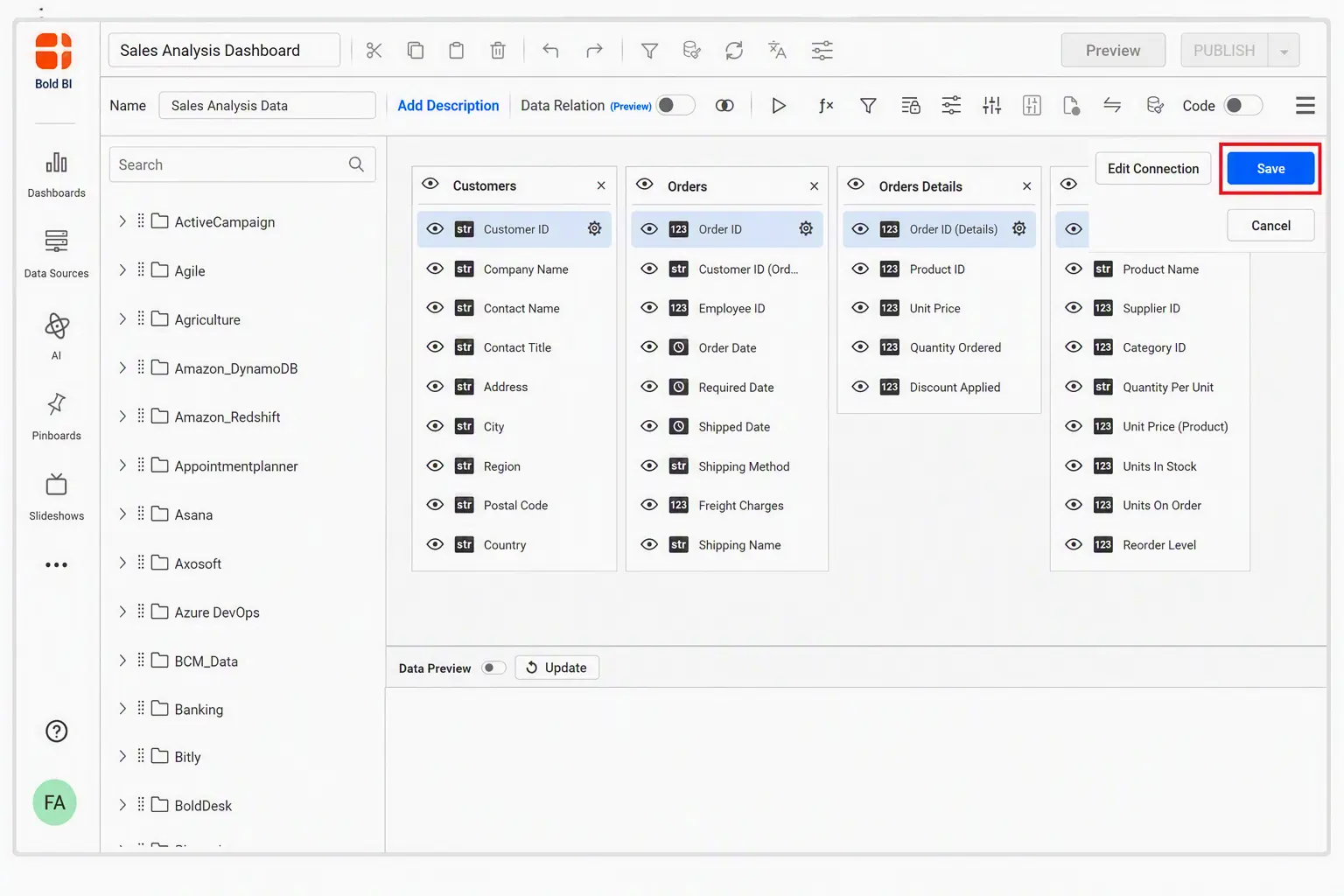
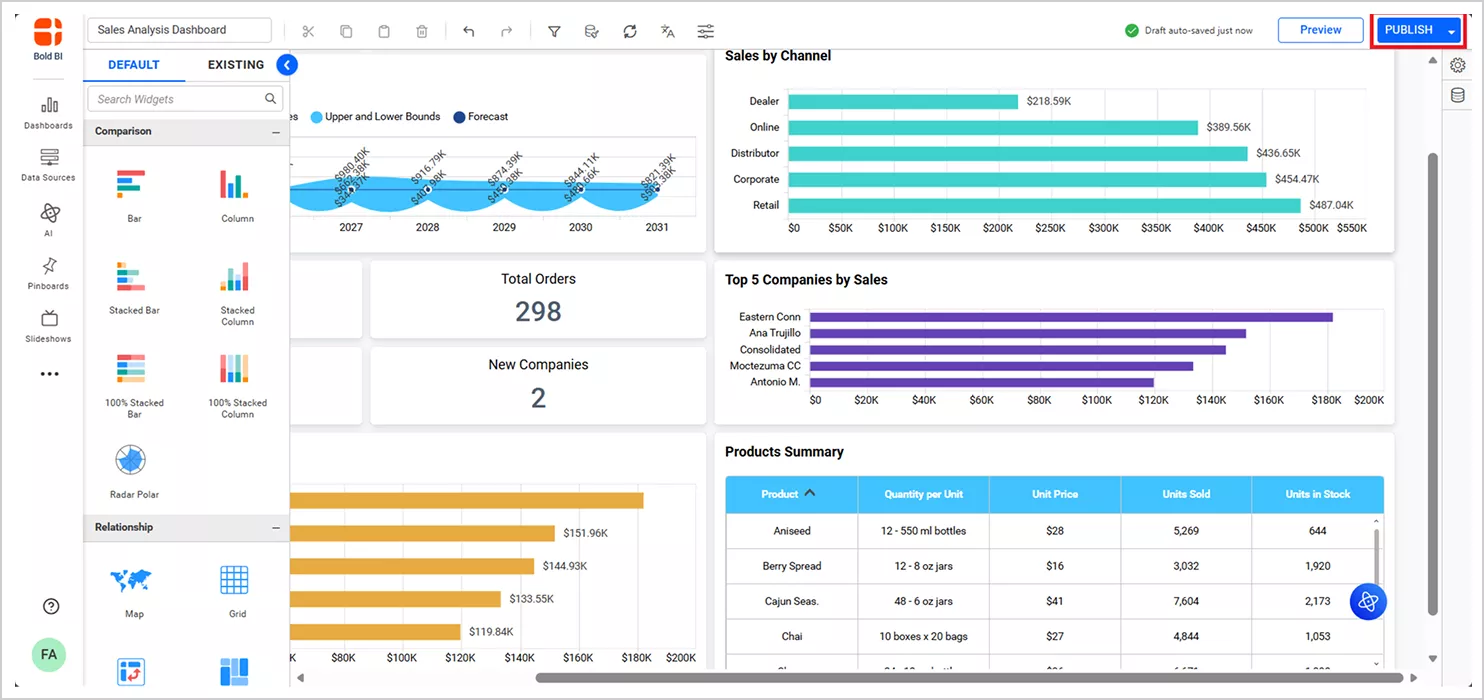
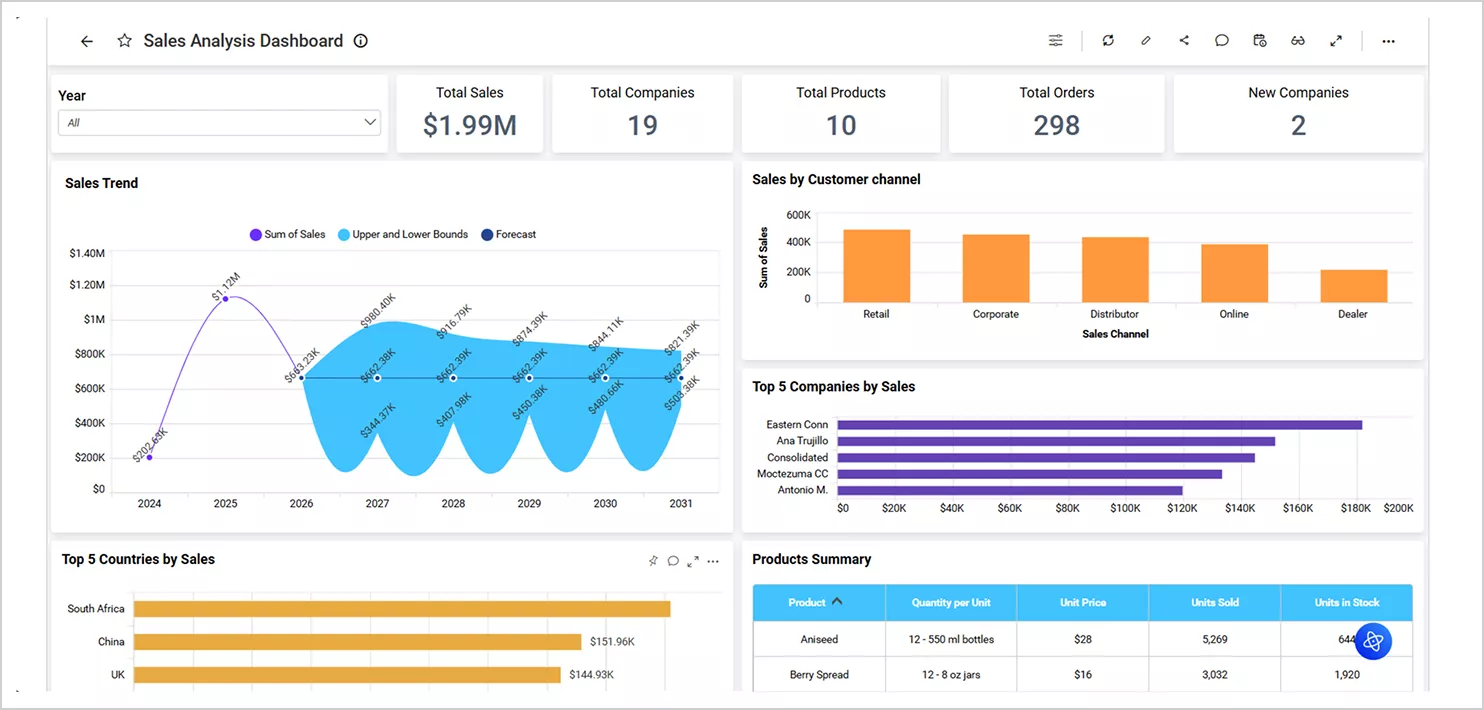
7. Select Publish or Preview to see the dashboard changes.
Security considerations for dashboard parameters
Dashboard parameters influence data retrieval before information is loaded into a dashboard. Because they can be used in queries, stored procedures, expressions, and filters, they should be implemented using appropriate validation and governance practices. Security and governance best practices include:
- Validating parameter values before they are passed to queries or stored procedures.
- Using predefined parameter lists whenever possible instead of unrestricted user input.
- Applying parameterized queries to reduce the risk of injection-based attacks.
- Restricting parameter modification to authorized dashboard designers and administrators.
- Avoiding the exposure of sensitive enterprise logic through parameter configurations.
- Using role-based access controls alongside dashboard parameters.
- Testing parameter behavior across different user roles and data access scenarios.
- Auditing parameter usage to ensure consistency with governance policies.
Following these practices helps maintain data integrity, improve dashboard security, and ensure that dashboard parameters support reliable and governed analytics experiences.
Real-world use cases for dashboard parameters
Dashboard parameters help enterprises control data retrieval before dashboards load, improving performance, reducing unnecessary data processing, and supporting reusable dashboard designs.
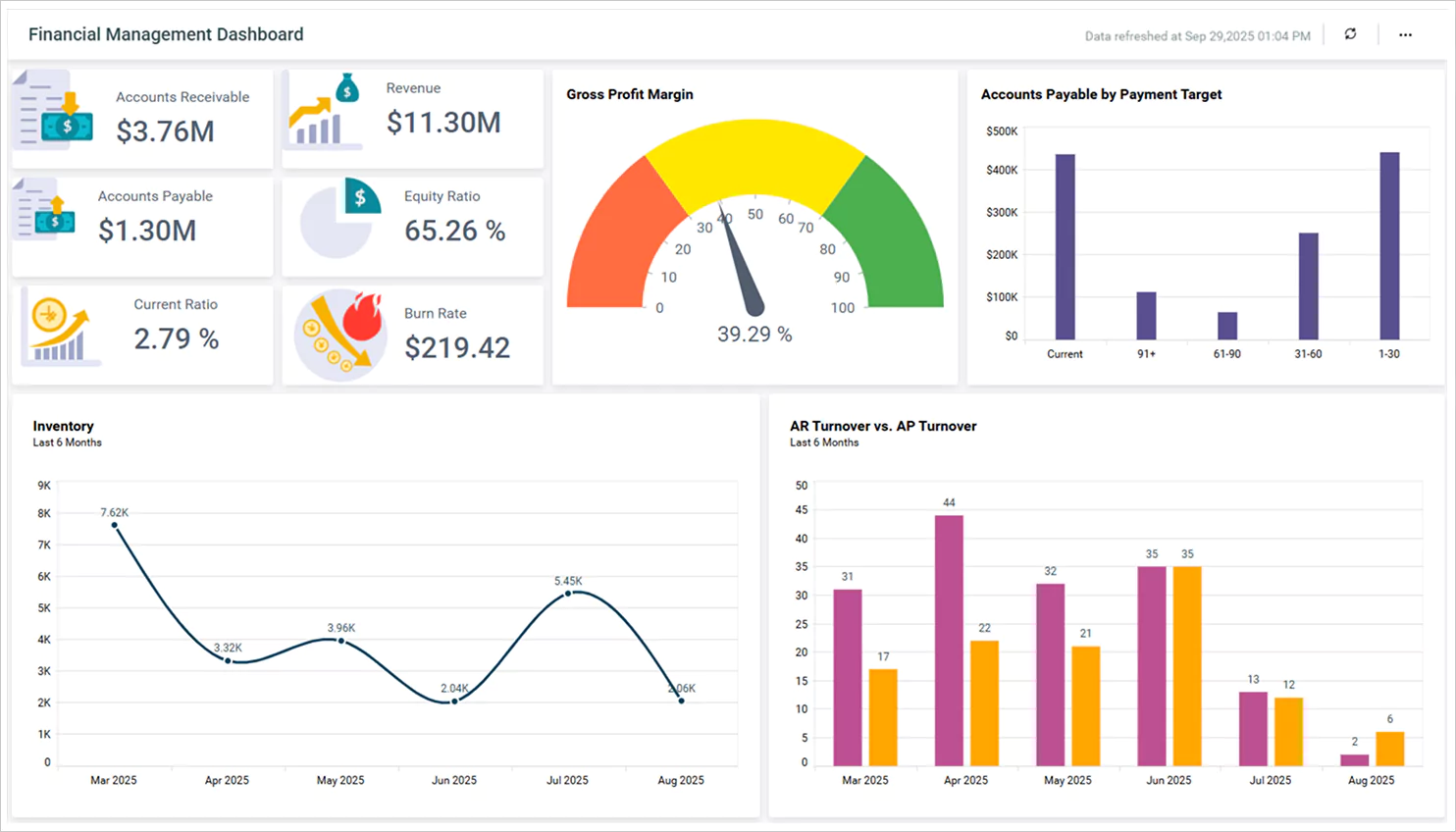
Financial services: Regulatory and period-based analytics
Financial institutions often need to analyze data across different reporting periods, business units, or fiscal years using a single dashboard.
- Scenario: A financial services company uses a single dashboard to analyze financial performance across different fiscal years and reporting periods.
- Challenges: Retrieving all historical financial data can increase query complexity and slow dashboard performance.
- How dashboard parameters solve it: A FiscalYear dashboard parameter filters data before retrieval, ensuring only the required reporting period is loaded.
Healthcare analytics: Department and facility-level analytics
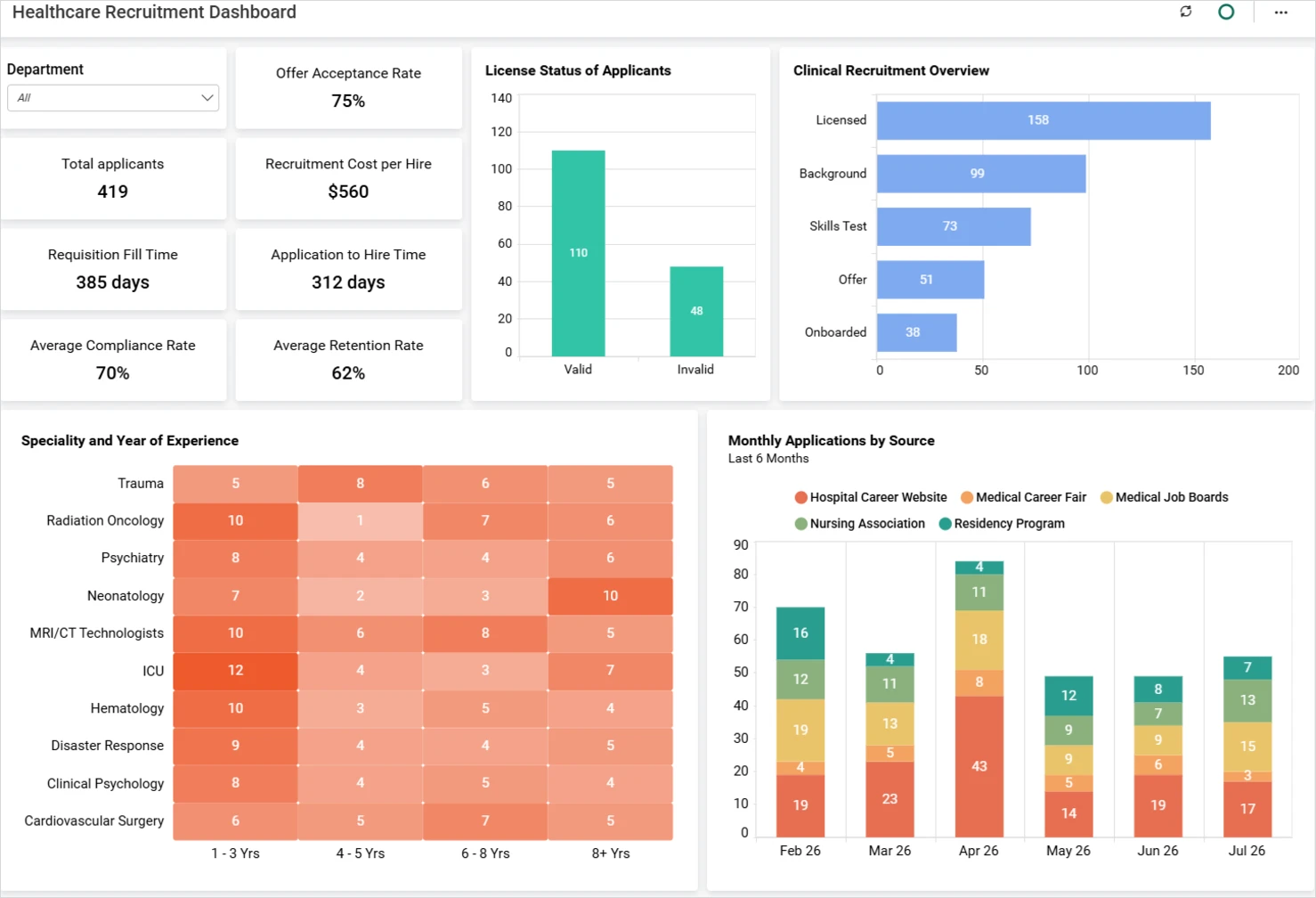
Healthcare companies frequently monitor performance across multiple hospitals, clinics, and departments.
- Scenario: A healthcare organization monitors patient, operational, and resource utilization metrics across multiple facilities and departments.
- Challenges: Querying data for every facility and department can increase load times and make reporting difficult to manage.
- How dashboard parameters solve it: Dashboard parameters dynamically retrieve only the selected department or facility data before the dashboard loads.
These examples show how dashboard parameters help organizations optimize data retrieval, improve performance, and create scalable reporting solutions using a single dashboard design.
While dashboard parameters excel at query-time control, embedded analytics often requires filtering after a dashboard is loaded. This is where filter parameters become valuable.
What are filter parameters?
Filter parameters are runtime values passed to embedded dashboards through the embedding layer. They allow applications to dynamically control what data users see without modifying the dashboard design itself.
Unlike dashboard parameters, filter parameters operate during the embedding process, making them particularly useful for SaaS platforms, customer portals, and multitenant applications.
When to use filter parameters
Use filter parameters when you need to:
- Personalize embedded dashboards based on logged-in users.
- Apply runtime filtering from application context.
- Support customer-specific analytics experiences.
- Implement tenant-based reporting.
- Dynamically change data visibility without editing dashboards.
- Pass contextual values from applications to embedded dashboards.
- Control dashboard content using server-side business rules.
- Simplify embedded analytics deployments across multiple customers.
Filter parameters are particularly valuable when dashboards must adapt to changing user contexts while maintaining a single dashboard design.
When not to use filter parameters
Filter parameters may not be the ideal choice when:
- Dashboards are not embedded inside an application.
- Filtering should occur before data retrieval.
- Query optimization is the primary goal.
- Stored procedures require parameter values.
- Filtering logic needs to be used directly within data source queries.
- Dashboard users need interactive self-service filtering after data loads.
- A dashboard parameter can efficiently handle the requirement earlier in the data retrieval process.
In these situations, dashboard parameters or dashboard filters may provide a more suitable solution.
Common filter parameter approaches
Bold BI supports runtime filtering through:
- Client-side filterParameters.
- Server-side embed_datasource_filter.
- URL-based filtering.
- Combined filtering approaches.
Typical filter parameter use cases
Filter parameters are commonly used for:
- Customer-specific embedded dashboards.
- User-specific analytics experiences.
- Regional reporting.
- Branch-level performance tracking.
- Multitenant applications.
- Dynamic application-driven filtering.
Although both features influence data visibility, they operate at different stages of the analytics workflow. Understanding these differences is the key to selecting the right approach.
How to configure filter parameters in embedded applications
Filter parameters provide runtime control over embedded dashboards without requiring changes to the underlying dashboard design. To configure filter parameters:
Step 1: Configure the embedded dashboard
Create or publish the dashboard you intend to embed and obtain the dashboard identifier required by the embedding SDK.
app.post('/tokenGeneration', function (req, res) {
// Define row-level filter
const filter = "[{shipCountry=India}]";

// Build query string
let queryString = "embed_nonce=" + crypto.randomUUID();
queryString += "&embed_dashboard_id=" + dashboardId;
queryString += "&embed_user_email=" + userEmail;

// Add filter
queryString += "&embed_datasource_filter=" + filter;
});
Step 2: Pass filter parameters during rendering
Use the filterParameters property when rendering the embedded dashboard to pass contextual values from the application.
public string Authorize([FromBody] object embedQueryString)
{
// Deserialize the request payload to access embed query parameters
var embedClass = Newtonsoft.Json.JsonConvert.DeserializeObject<EmbedClass>(embedQueryString.ToString());
var embedQuery = embedClass.embedQueryString;

// Attach necessary user information and synchronization details
embedQuery += "&embed_user_email=" + EmbedProperties.UserEmail;
double timeStamp = (int)DateTime.UtcNow.Subtract(new DateTime(1970, 1, 1)).TotalSeconds;
embedQuery += "&embed_server_timestamp=" + timeStamp;

// Implement the filter parameters to manage data visibility
embedQuery += "&embed_datasource_filter="+ "[{&&CustomerId=ANTON}]";

// Construct the authorization URL with the query and security signature
var embedDetailsUrl = "/embed/authorize?" + embedQuery + "&embed_signature=" + GetSignatureUrl(embedQuery);

using (var client = new HttpClient())
{
client.BaseAddress = new Uri(embedClass.dashboardServerApiUrl);
client.DefaultRequestHeaders.Accept.Clear();

// Execute the HTTP request and retrieve the result
var result = client.GetAsync(embedClass.dashboardServerApiUrl + embedDetailsUrl).Result;
string resultContent = result.Content.ReadAsStringAsync().Result;

// Return the response content to complete the authorization process
return resultContent;
}
}
Typical scenarios include
- User-selected regions.
- Product category filtering.
- Department-specific reporting.
- Personalized dashboard views.
Benefits include:
- Dynamic filtering during runtime.
- Flexible application integration.
- Personalized user experiences.
Step 3: Apply server-side filtering
For tenant-specific or governed filtering requirements, generate filter values on the server before rendering the dashboard.
// tenantId and userEmail must come from the authenticated session context,

// never from unvalidated client input.

var filter = $"TenantId='{tenantId}' AND UserEmail='{userEmail}'";

var embedQuery =

$"?embed_datasource_filter={Uri.EscapeDataString(filter)}";
Encoding the filter string with Uri.EscapeDataString before appending it to the embed URL helps prevent malformed values from breaking the query string and ensures filter values are safely passed in the URL. Recommended practices include:
- Validating all filter values before use.
- Sanitizing values before constructing filters.
- Using URL-encoded values when generating embed URLs.
- Generating filters from trusted application context.
- Avoiding directly using unvalidated user input.
Benefits include:
- Helping to reduce client-side manipulation risks.
- Supporting tenant-level filtering rules.
- Centralizing filtering logic.
- Improving governance within embedded environments.
Step 4: Use URL-based filtering
URL parameters can be used to provide dashboard context when users access embedded analytics through shared links or navigation flows. Typical scenarios include:
- Deep linking.
- Shared dashboard URLs.
- Regional reporting links.
- Context-aware navigation.
Step 5: Verify filter behavior
Test embedded dashboards using different user contexts and filter values to confirm the intended data is displayed correctly.
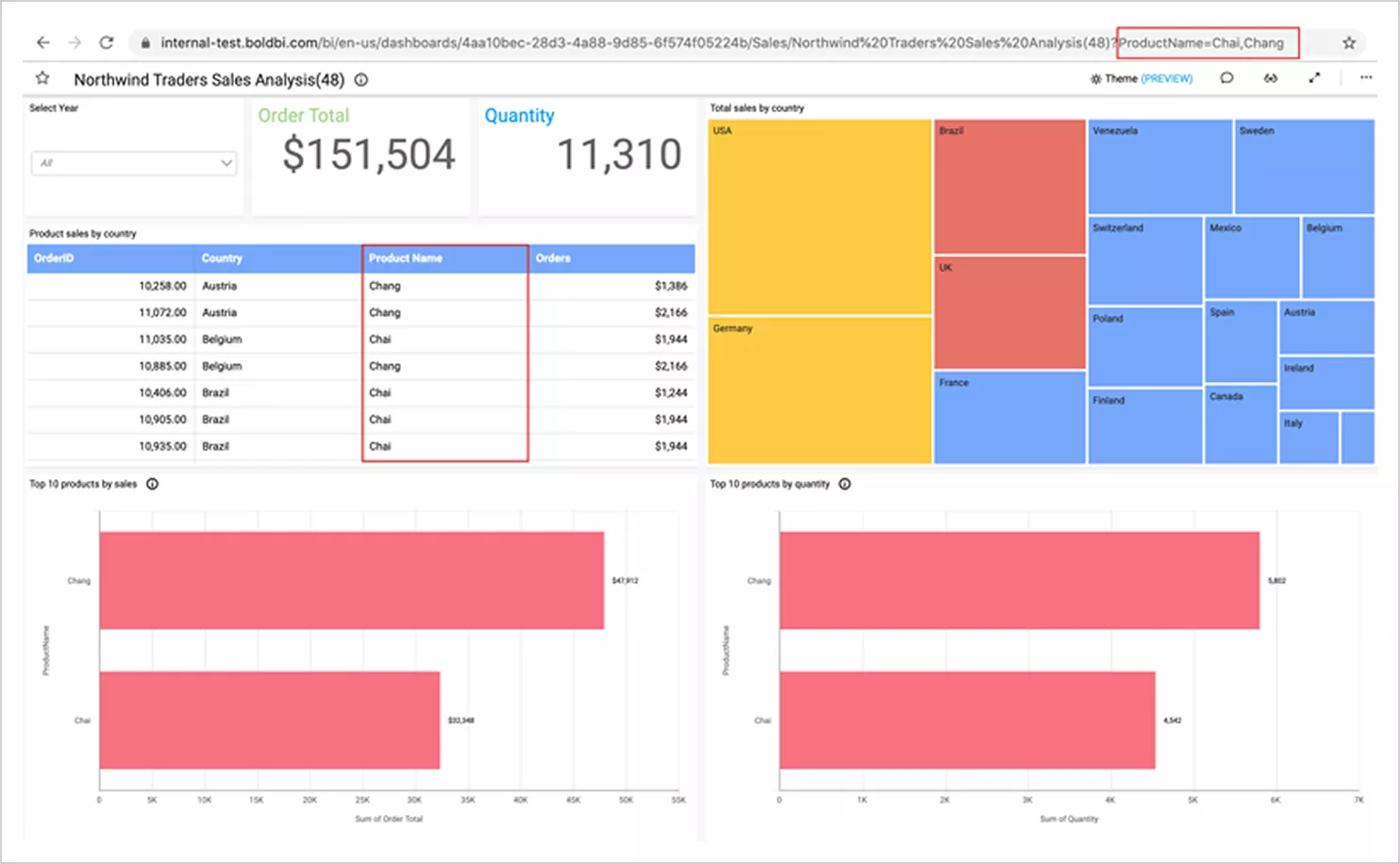
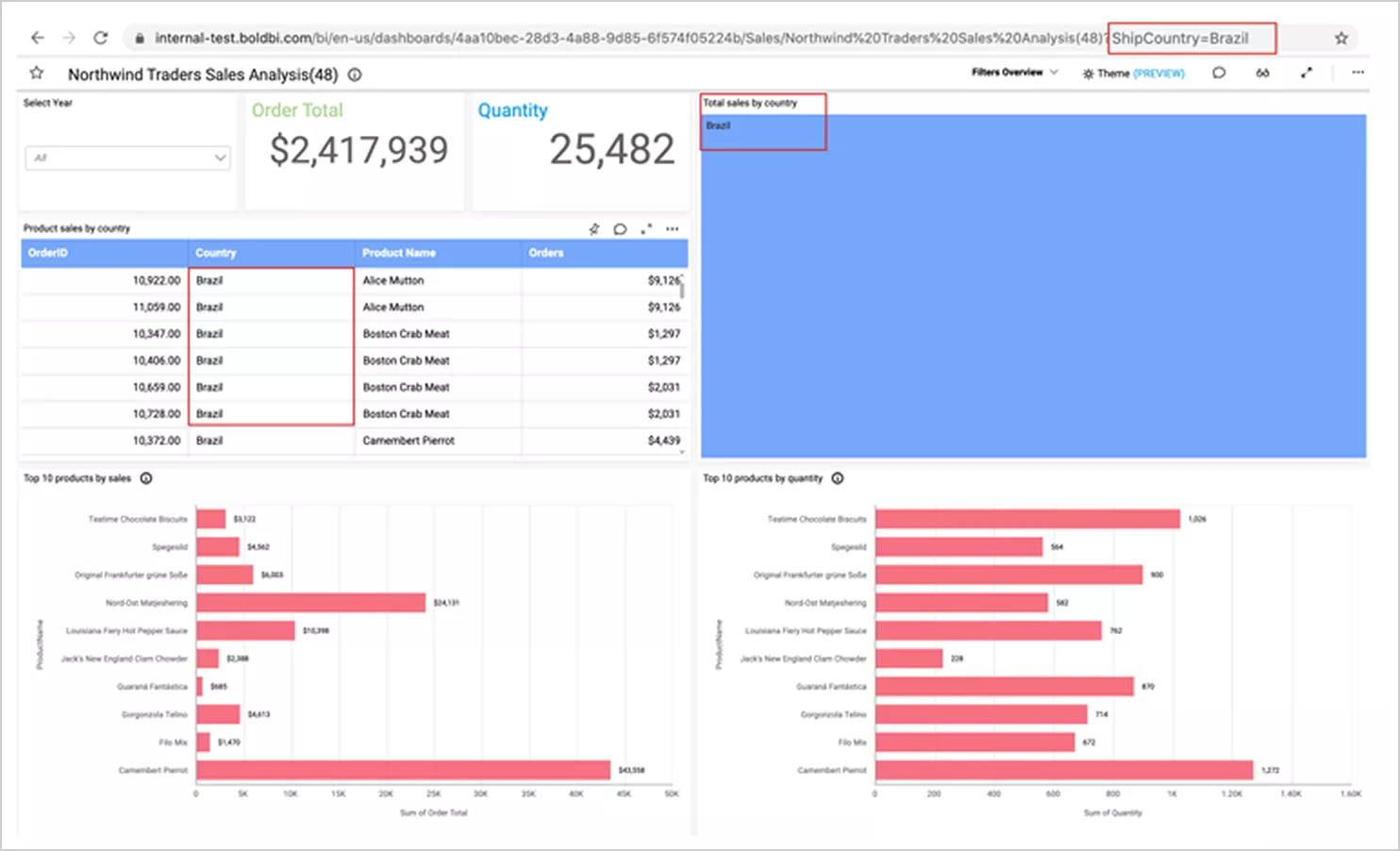
Benefits include:
- Improved reliability.
- Reduced configuration issues.
- Ensuring consistent user experiences.
Each filtering approach provides unique advantages, but many teams combine them to deliver a more complete analytics solution.
Security considerations for filter parameters
Filter parameters help tailor data visibility to different users, but they should always be combined with appropriate access controls and governance policies. However, filtering should be viewed as part of a broader governance strategy rather than a standalone security mechanism. Security best practices include:
- Validating and sanitizing filter values before use.
- Generating filtering logic on the server whenever possible.
- Using trusted application context when constructing filters.
- Avoiding exposing sensitive filtering rules in client-side code.
- URL-encoding filter values before generating embed URLs.
- Combining filtering with existing access-control mechanisms.
Real-World Use Cases for Filter Parameters
Filter parameters help businesses personalize embedded analytics experiences by dynamically controlling data visibility at runtime.
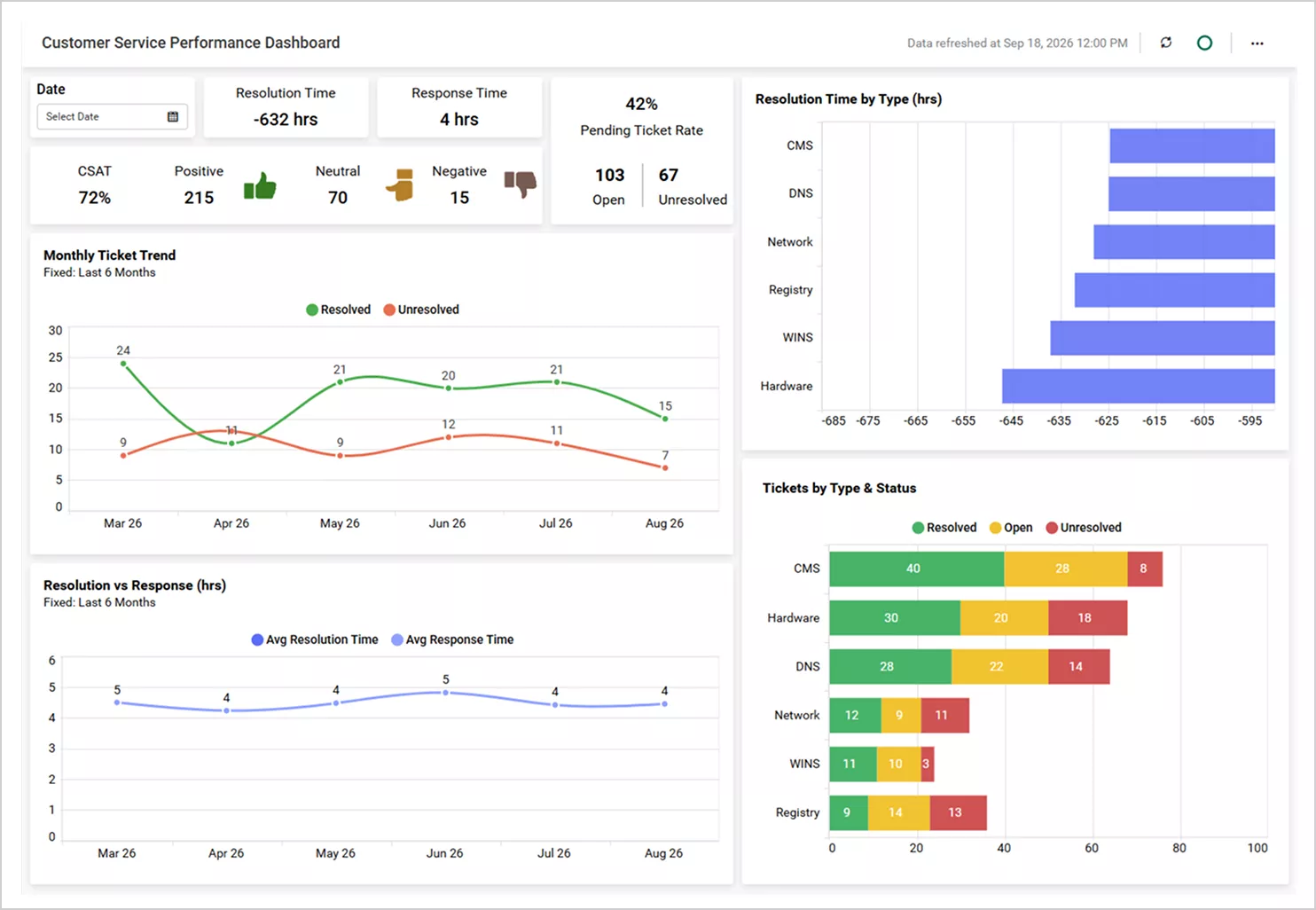
SaaS Platforms: Customer-specific embedded analytics
SaaS providers often serve hundreds of customers through a single application and dashboard.
- Scenario: A SaaS provider embeds a dashboard within its application to deliver analytics to multiple customers.
- Challenges: Each customer must see only their own data without requiring separate dashboards.
- How filter parameters solve it: Filter parameters pass the customer or tenant identifier during embedding to display only the relevant customer data at runtime.
Sales organizations: Territory and regional performance analytics
Sales companies often require sales managers, regional directors, and account executives to view performance metrics specific to their assigned territories or regions.
- Scenario: A sales organization embeds a dashboard for sales managers, regional directors, and account executives.
- Challenges: Different users require visibility into different territories, regions, and sales teams without maintaining multiple dashboard versions.
- How filter parameters solve it: Filter parameters dynamically apply territory, region, or sales team values during embedding so each user sees only their assigned sales performance data.
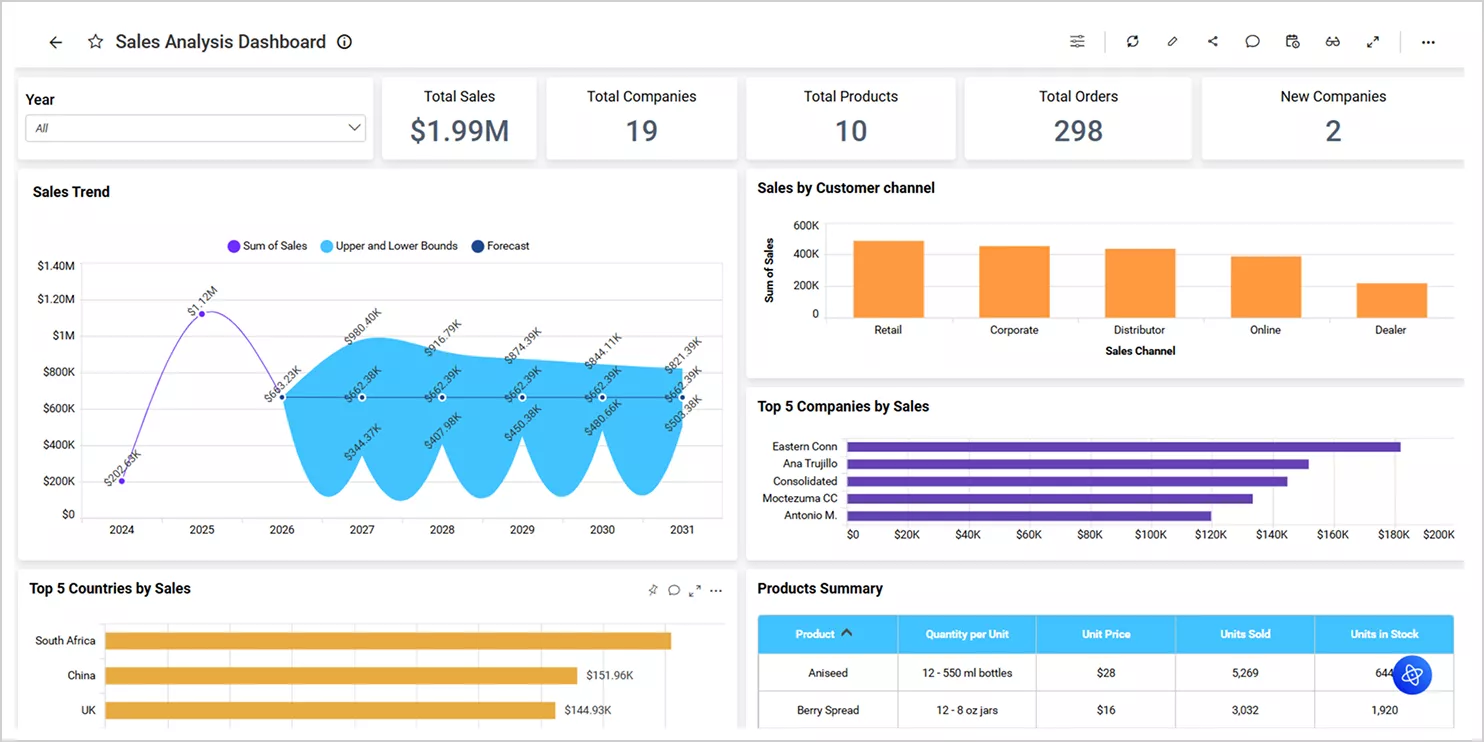
These examples show how filter parameters enable scalable, runtime personalization within embedded analytics environments while reducing the need for multiple dashboard versions.
Dashboard parameters vs. filter parameters vs. dashboard filters
| Feature | Dashboard parameters | Filter parameters | Dashboard filters |
| Purpose | Control data retrieval | Runtime embedded filtering | Interactive analysis |
| Execution stage | Before data retrieval | During embedding | After data loads |
| Scope | Dashboard data sources | Embedding layer | Dashboard interface |
| Best for | Performance and reusability | Embedded analytics | Ad hoc data exploration |
| Managed by | Dashboard designer | Application developer | End user |
| Typical usage | Queries, stored procedures, and expressions | SDKs, APIs, and URLs | Widgets, pages, and dashboards |
Dashboard parameters control what data is retrieved from the source. Filter parameters control what data is displayed within embedded applications. Dashboard filters allow users to interactively explore data that has already been loaded into the dashboard.
Now that the distinction is clear, let’s look at how dashboard parameters are configured in Bold BI.
Using dashboard parameters and filter parameters together
Dashboard parameters and filter parameters are complementary rather than competing features. Organizations implementing customer-facing analytics, embedded BI platforms, and multi-tenant SaaS applications often use dashboard parameters and filter parameters together to balance performance, governance, and personalization.
Example scenario
Consider a multi-tenant SaaS application that embeds analytics dashboards for its customers. Users need to analyze data across different fiscal years while viewing only the information relevant to their assigned region.
In this scenario, a dashboard parameter is used to retrieve data for a selected fiscal year before the dashboard loads, while a filter parameter dynamically applies region-specific filtering based on the logged-in user at runtime.
In this setup, the dashboard parameter determines which data is retrieved from the database, whereas the filter parameter controls which subset of that data is displayed within the embedded experience. Together, they help improve performance, support personalization, and simplify dashboard management across multiple customers.
Benefits of combining both
Businesses can benefit from:
- Faster data retrieval.
- Better personalization.
- Improved scalability.
- Simplified dashboard maintenance.
- Stronger governance controls.
The combination becomes especially valuable in environments where performance, personalization, and controlled access all play an important role.
Following these practices helps reduce the risk of unintended data exposure while supporting personalized embedded analytics experiences.
Best practices for dashboard parameters and filter parameters
Following best practices helps improve performance, maintainability, and usability. Best practices include:
- Using descriptive parameter names.
- Filtering data as early as possible.
- Using dashboard parameters for query-time optimization.
- Using filter parameters for runtime personalization.
- Centralizing filtering logic whenever possible.
- Applying server-side filtering for tenant-specific scenarios.
- Avoiding unnecessary client-side exposure of filtering rules.
- Regularly testing filtering behavior across different user contexts.
By implementing these recommendations, teams can build analytics solutions that remain scalable and easy to maintain.
Final takeaway
Dashboard parameters and filter parameters serve distinct but complementary roles in Bold BI®. Dashboard parameters optimize and control data retrieval, while filter parameters provide runtime personalization for embedded analytics applications. Combined with dashboard filters, they help users deliver scalable, personalized, and well-governed analytics experiences without maintaining multiple dashboard versions
The key difference is timing. Dashboard parameters influence what data is retrieved from the source, while filter parameters influence what users see in an embedded experience. When used together, they enable scalable, performant, and personalized analytics without increasing dashboard maintenance overhead.
Get started with Bold BI by signing up for a free trial and creating more interactive business intelligence dashboards. You can also contact us by submitting your questions through the Bold BI website or, if you already have an account, you can log in to submit your support question.
Related resources
- Filtering a Dashboard with Dashboard Parameters.
- Manage Custom Attributes & Parameters in Dashboards.
- How to Use Widget-Level Filters in Dashboards Effectively.
Frequently Asked Questions
- 1.
What are dashboard parameters in Bold BI?
Dashboard parameters are reusable values used within queries, stored procedures, calculated fields, expressions, and filters to control data retrieval before data is loaded.
- 2.
What are filter parameters in Bold BI?
Filter parameters are runtime values passed through the embedding layer to dynamically control what data is displayed within embedded dashboards.
- 3.
Which is better for embedded analytics?
Filter parameters are generally better suited for runtime personalization, while dashboard parameters are more suitable for query-time optimization and data retrieval control.
- 4.
Do filter parameters replace dashboard parameters?
No. The two features serve different purposes and are often used together in embedded analytics solutions.
- 5.
How are dashboard parameters different from filter parameters and dashboard filters?
Dashboard parameters control data before it is retrieved from the source. Filter parameters provide runtime filtering within embedded applications. Dashboard filters allow users to interactively refine data that has already been loaded into the dashboard.
- 6.
Are filter parameters a security feature?
Filter parameters can help support controlled data visibility when combined with validated server-side filtering and appropriate access-control mechanisms. However, they should complement broader governance and security practices rather than replace them.
- 7.
How do dashboard parameters improve performance?
Dashboard parameters reduce the amount of data retrieved from the source by applying filtering before query execution.
- 8.
Can dashboard parameters and filter parameters be used together?
Yes. Dashboard parameters optimize retrieval, while filter parameters personalize the embedded experience. These two questions target common search queries.