How to Embed AI Assistant in Your Software Application
TL;DR: Embedded dashboards are already interactive, but users still struggle to understand why numbers change or what to focus on next. In SaaS applications, this leads to repeated questions, low analytics adoption, and reliance on support teams. By embedding interactive dashboards together with a Unified AI Assistant, Bold BI® helps users ask questions in plain language, understand trends and anomalies, and explore insights directly within the application, without building new dashboards or needing BI expertise.
Why an AI Assistant is essential for modern software
Many SaaS and B2B products already embed interactive dashboards that let users filter data, drill into details, and view live updates. But as analytics become part of everyday decision-making, a common issue shows up: users can see the numbers, but they’re not always sure what those numbers mean. Questions like why something changed, what caused a spike, or where to focus next still come up, often leading users to reach out to support or documentation for clarity.
Bold BI addresses this by embedding a Unified AI Assistant directly inside your application. Instead of adding more charts or complexity, the AI Assistant helps users ask simple questions and get explanations using the data they’re already looking at. Because it works within the embedded dashboard itself, users can understand trends, explore insights, and move forward with confidence without switching tools or needing analytics expertise.
Who this guide is for
This guide is for teams building or managing software products where analytics is part of the user experience, including SaaS product managers who want analytics inside their product to be easier for users to understand and customer-facing product teams that deliver analytics to external users who are not BI experts.
If your product already embeds dashboards but users still ask why numbers changed or what to look at next, this guide is for you.
Why embedding an AI analytics Assistant is important
Interactive dashboards show data, but they don’t always explain it. In embedded SaaS analytics, users often lack the time or expertise to explore every filter, drill-down, or report to find answers on their own.
An embedded AI analytics Assistant solves this by helping users:
- Ask questions in plain language
- Understand trends instantly
- Explore data without building new dashboards
- Get answers without relying on support or analysts
By embedding the AI Assistant directly inside your application, analytics becomes part of the product workflow, not a separate tool. This improves adoption, reduces support load, and helps users make faster, more confident decisions using the data they already see.
Benefits of embedding an AI Assistant in your application
Embedding an AI Assistant directly into interactive dashboards helps teams move beyond showing data to actually helping users understand it. Key benefits include:
1. Faster answers without extra dashboards
Users can ask questions in plain language and get explanations instantly, instead of requesting new dashboards or reports for every follow-up question.
2. Better analytics adoption
When users understand what they’re seeing, they use analytics more often. An AI Assistant lowers the learning curve for non-BI users and makes dashboards easier to use daily.
3. Reduced support and analyst dependency
Common questions like “why did this change?” or “what caused this spike?” are answered inside the dashboard, reducing repetitive support requests and manual analysis.
4. Improved decision-making inside the product
Users don’t need to export data or switch tools to interpret results. Insights and explanations are available directly within the application workflow.
5. Consistent understanding of metrics
The AI Assistant works on top of existing dashboards and data models, helping users interpret metrics consistently instead of forming their own assumptions.
6. Scalable analytics for SaaS products
As the number of users grows, the AI Assistant helps scale analytics usage without increasing support, training, or documentation overhead.
These benefits are powered by Bold BI’s rich set of features. Let’s take a closer look at what makes our AI Assistant so effective.
Supported AI Assistant embedding in Bold BI
Bold BI supports embedding an AI Assistant directly inside dashboards and applications using the Embedded SDK and component API. This allows SaaS and B2B teams to deliver AI-powered analytics as part of their product experience, not as a separate tool. The following are the supported AI Assistant embedding options:
1. Embedded dashboard with AI Assistant
You can embed fully interactive dashboards with filters, drill-down menus, and live data, while also enabling the AI Assistant in the same view. Users can ask questions, explore insights, and create or modify widgets using natural language, making data analysis more intuitive and accessible.
For more details about the embedded dashboard with an AI Assistant in Bold BI, refer to our documentation.
2. Unified AI Assistant in embedded applications
Bold BI supports embedding the Unified AI Assistant inside applications, allowing SaaS and B2B teams to interact with analytics using natural language. The Assistant processes dashboard context and responds with insights, summaries, and supporting visuals.
To learn more about the Unified AI Assistant in Bold BI, refer to our documentation.
Now that you understand the AI Assistant features supported by Bold BI, let’s see how you can enable them.
How to enable an AI Assistant in the embedded dashboard
The AI Assistant for embedded dashboards can be enabled with both iframe and SDK embedding. The following sections explain the steps required to configure the AI Assistant at each embedding option.
Steps to enable the AI Assistant in token-based iframe embedding
- Understand the Syntax: For iframe embedding, the correct syntax to enable the AI Assistant is enable_ai_assistant. This parameter is set to false by default.
- Modify the Embed URL: To enable the AI Assistant, append the query parameter enable_ai_assistant to your embed URL and set it to true. Below is an example of how to form the embed URL with the necessary parameters, including enabling the AI Assistant:
static void Main(string[] args)
{
// Variable declaration to form the embed URL
var dashboardUrl = "https://analytics.lincros.com/bi/site/tracking/dashboards/e83b3f89-fd39-449b-9b31-08608a46da02/TMS%20-%20Painel%20Inicial/Painel%20Inicial?";
// Mandatory Parameters to embed the dashboard with token based authentication.
var nonce = Guid.NewGuid().ToString();
var userEmail = "[email protected]";
double timeStamp = Math.Round((DateTime.UtcNow - new DateTime(1970, 1, 1, 0, 0, 0, 0, DateTimeKind.Utc)).TotalSeconds);
string embedSecretKey = "S5ipVXzGdkM7xuG5W1UqCe9cc8Lhctsa42vnCUmbLj0=";
// Form the embed parameters
string embedParameters = "embed_nonce=" + nonce + "&embed_user_email=" + userEmail + "&enable_ai_assistant=true";
string signature = SignURL(embedParameters, embedSecretKey);
string embedSignature = embedParameters + "&embed_signature=" + signature;
var embedUrl = dashboardUrl + embedSignature;
var iframe = "<iframe src='" + embedUrl + "' id='dashboard-frame' width='100%' height='100%' allowfullscreen frameborder='0'></iframe>";
var filePath = System.AppDomain.CurrentDomain.BaseDirectory + "embed.html";
File.WriteAllText(filePath, iframe);
string url = filePath;
Process.Start("chrome.exe", url);
}
- Dashboard testing: After implementing the above code, test the embedded dashboard to ensure that the AI Assistant icon is now visible.
For detailed insights, refer to our article on how to enable an AI Assistant in token-based iframe embedding.
Steps to enable the AI Assistant in SDK embedding
Bold BI allows you to enable the AI Assistant for embedded dashboards using the Embedded SDK settings, so you can generate and modify widgets using natural-language queries, making dashboard interaction more intuitive and accessible.
- Locate the configuration property: In the Embedded SDK configuration, the AI Assistant is controlled by the Boolean property:
aiAssistant.enabled - Enable the AI Assistant: Set enabled to true inside the aiAssistant object when creating the dashboard instance as shown:
var dashboard = BoldBI.create({

settings: {

aiAssistant: {

enabled: true

}

}

});

dashboard.loadDashboard();
- Understand the default behavior: The default value is false. If you don’t set this property (or set it to false), the AI Assistant will remain disabled.
- Confirm support scope: This configuration works for Cloud and Enterprise editions in both Dashboard Viewer embedding and Dashboard Designer embedding.
- Check version compatibility: Ensure the Embedded SDK version and the Bold BI Server version match. A mismatch may prevent the AI Assistant from working as expected. Refer to our documentation for more details.
For detailed instructions for enabling or disabling AI features in Bold BI’s embedded dashboards, refer to our documentation.
Now, let’s see how you can embed the Unified AI Assistant in your application using Bold BI.
How to embed Bold BI’s Unified AI Assistant in your application
The Unified AI Assistant is a secure, embeddable conversational interface that enables users to ask natural‑language questions directly within your application. It delivers context‑aware insights, maintains persistent chat history, and fully respects user‑level permissions, making it easy to integrate intelligent assistance into your product experience.
Prerequisites
Before embedding the AI Assistant, ensure the following:
- Generate an embed authorization token.
- The embed token must be generated on the back-end server, never on the client side.
- Sensitive credentials such as the embedSecret should never be exposed in the browser.
This approach ensures secure and controlled access to AI-powered analytics. With prerequisites met, you can now follow the step-by-step guide to embed AI-driven analytics into your software.
Steps to embed the Unified AI Assistant using Bold BI
Follow these steps to embed the Unified AI Assistant features in your app.
- Installing the Bold BI Embedded SDK: Install the Bold BI Embedded SDK in your application either via NPM or using a CDN script to access the libraries required to embed AI data analytics components.
- Add HTML container elements within your application UI: Add an HTML container element in your application’s UI (like <div id=”embed_container”></div>) where the embedded analytics content will be rendered.
- Creating a Bold BI instance using secure embed tokens: Create a Bold BI instance by configuring it with a securely generated embed token from your back-end server.
- Loading analytics components within the application context: Load the required analytics components so users can interact with AI-driven insights directly inside your application.
For more details on how to add AI and data analytics capabilities to your software, refer to our documentation.
Now, you can see these capabilities in real-world use cases where the AI Assistant drives faster decision-making:
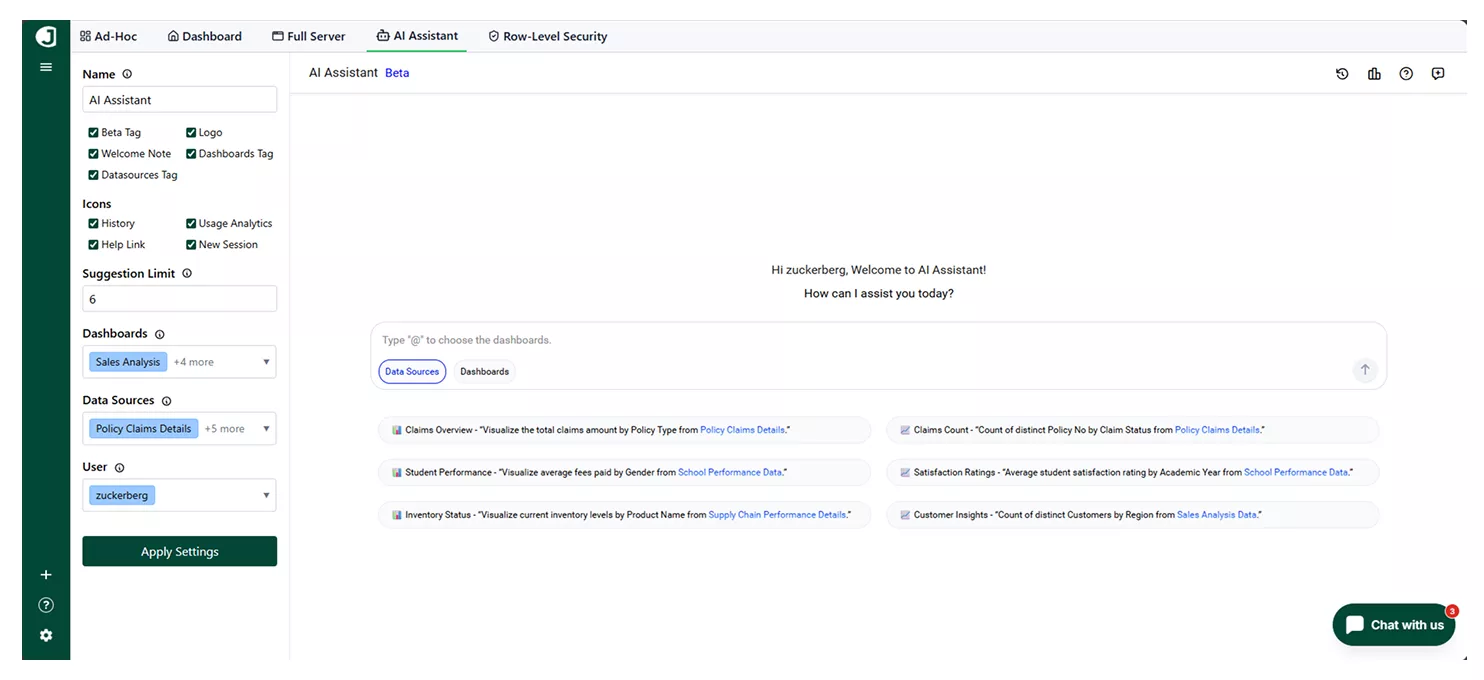
Real-world use cases of Bold BI’s Unified AI Assistant feature
After embedding the Unified AI Assistant in your application, you can use it to ask questions, summarize dashboards, identify trends, and uncover insights in real time, all without switching tools or building new reports.
Here’s a real-world example of how a sales manager can use it for quick performance analysis and decision-making.
Scenario
Sales leaders and managers frequently need a quick, high-level summary of overall sales performance, especially before executive reviews, pipeline meetings, or end-of-day check-ins.
Problem
Due to the volume and complexity of sales data spread across multiple metrics, regions, and time periods, it is often difficult to quickly understand overall performance. Managers must manually scan multiple charts, apply filters, or drill into reports to answer simple questions like what changed, what caused a spike, or which areas need attention.
This process is time-consuming and often requires help from analysts or support teams, slowing down decision-making.
How Unified AI Assistant in Bold BI solves this
The AI Assistant solves this by letting the manager type a natural language request like “Summarize the sales analysis dashboard” directly in the centralized interface. It instantly analyzes the dashboard’s visuals and metrics to generate a concise, accurate performance summary with key highlights and notable changes.
Take action faster without waiting for analysts or switching tools.
To learn more about dashboard metrics and KPIs, refer to our Bold BI embedded analytics demos.
Transform your software with an AI Assistant
AI-powered analytics is becoming a key differentiator for modern software products. While embedded dashboards make data accessible, users still need help understanding what the data means, why it changes, and what actions to take next. Without this context, analytics adoption remains low, and support teams continue to fill the gap.
By embedding a Unified AI Assistant directly into your application with Bold BI®, you turn analytics into an interactive, guided experience. Ready to make embedded analytics more intuitive and actionable for your team?
With Bold BI’s embedded AI Assistant, you can deliver context-aware insights, reduce support dependency, and help your team understand their data directly inside your application.
Sign up for a free trial of Bold BI today or request a personalized demo to see how quickly you can embed AI-powered analytics into your application and delight your users.
Frequently asked questions
- 1.
What does “embed” mean in AI?
In AI and analytics, “embed” means seamlessly integrating AI-powered capabilities, such as insights, dashboards, or intelligent Assistants, directly into your application, portal, or website. Instead of users switching between tools, AI works inside your product, as a native experience.
- 2.
Is my data secure when using AI features?
Yes. Bold BI ensures enterprise-grade security with role-based access, SSO, audit logs, and data encryption.
- 3.
Can I embed these AI features into my application?
Yes. Bold BI’s embedded analytics platform allows you to integrate AI-powered dashboards and an AI Assistant into your apps with full branding control.